Edit a Deal
Update the details of an existing deal — including title, contact, value, stage, probability, close date, assigned owner, and notes — directly from the pipeline board. Changes take effect immediately on the Kanban board.
Step 1 — Open the Edit Deal modal
On the Pipeline board, locate the deal card you want to update. Click the pencil (edit) icon in the bottom-right corner of the card.
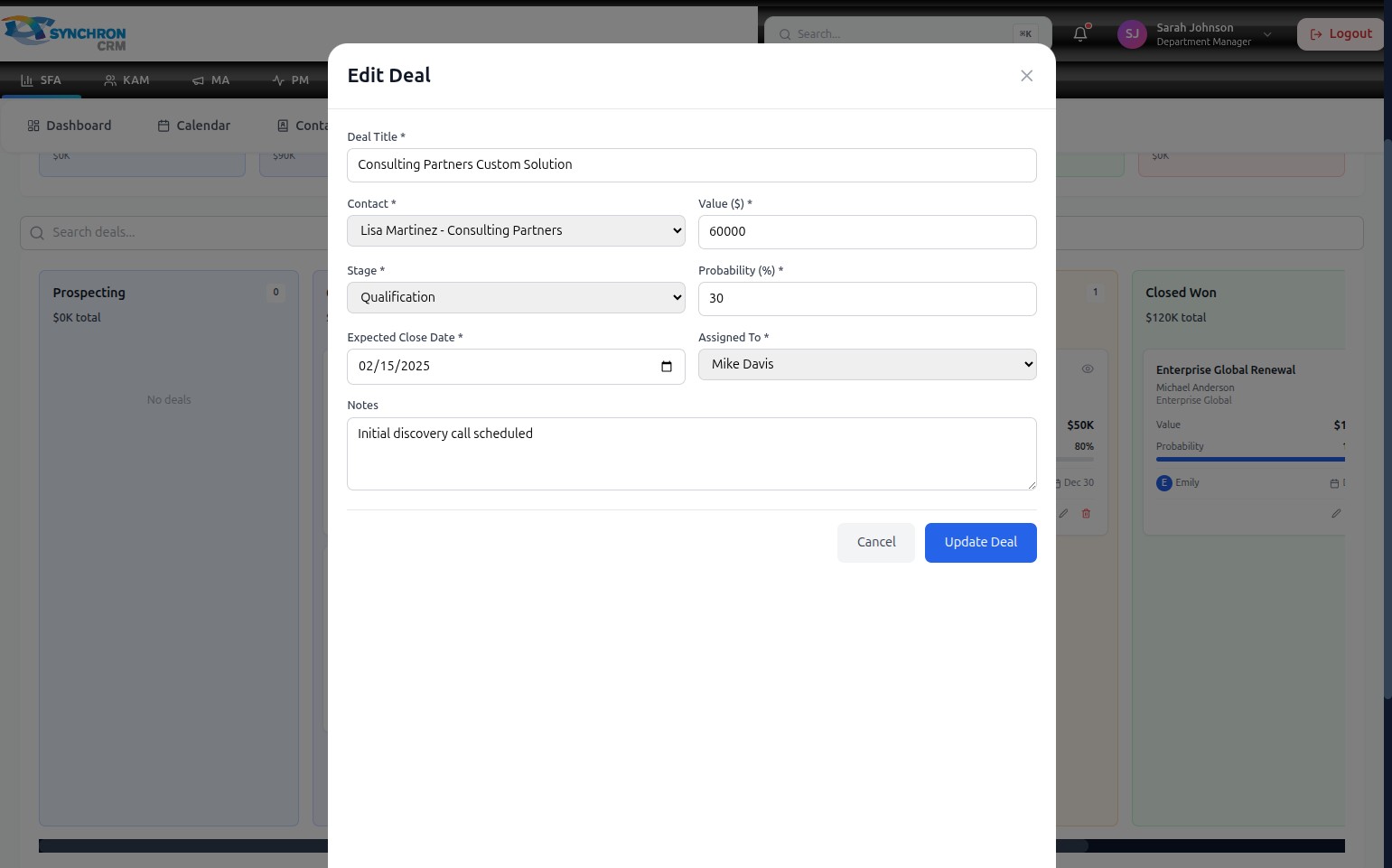
The "Edit Deal" modal opens with all current information pre-filled. You can update any field and save changes in one action.
Step 2 — Review all editable fields
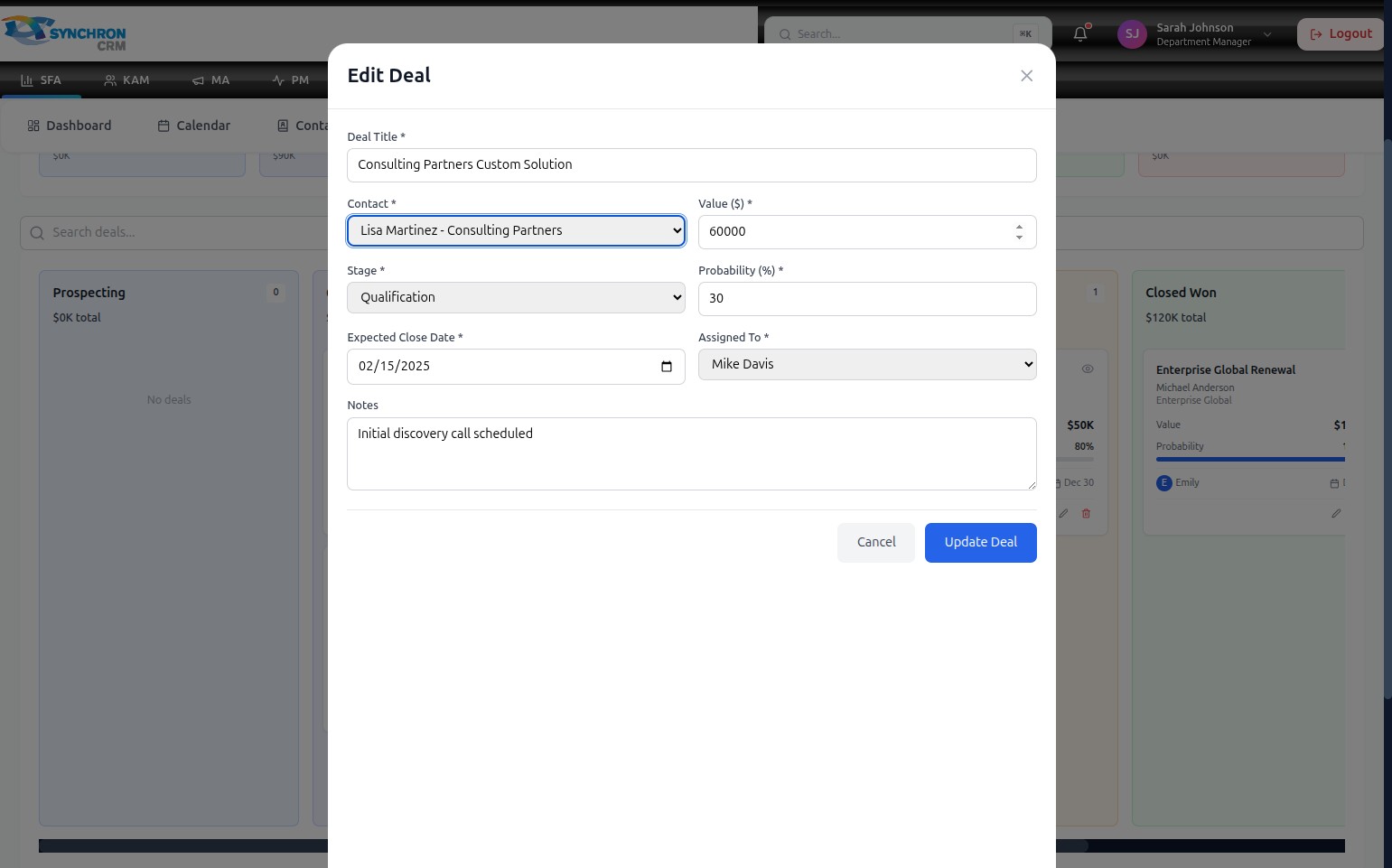
All fields in the Edit Deal form can be modified:
| Field | How to update |
|---|---|
| Deal Title | Click into the text field and type the updated name |
| Contact | Click the dropdown and select a different contact |
| Value ($) | Click the number field and enter the new amount |
| Stage | Click the dropdown and select the new pipeline stage |
| Probability (%) | Click the number field and type an updated percentage |
| Expected Close Date | Click the calendar icon or date field and select a new date |
| Assigned To | Click the dropdown and select a different team member |
| Notes | Click the text area and add or revise any details |
Step 3 — Change the deal stage
If you need to advance or move the deal to a different pipeline stage:
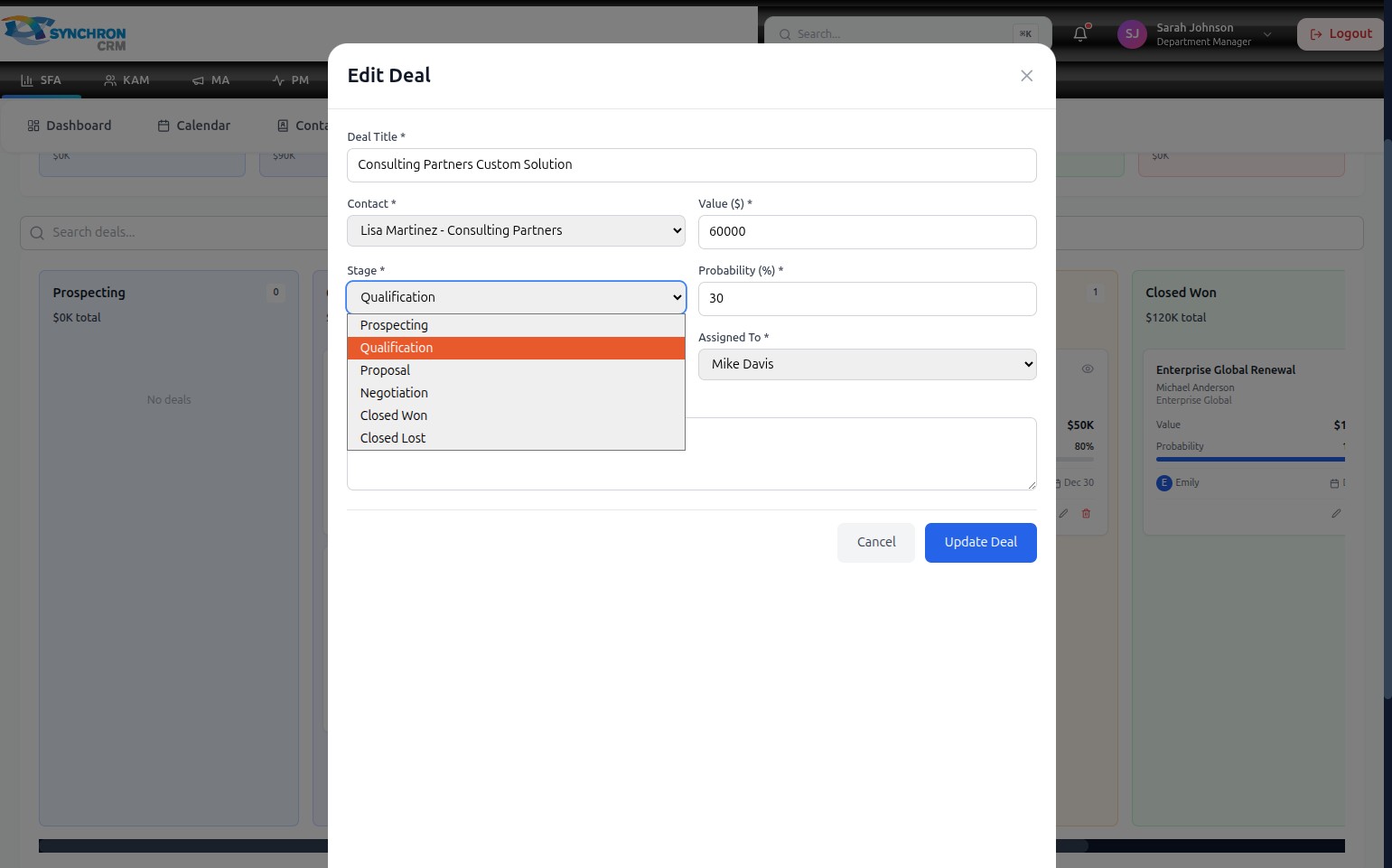
- Click the Stage* dropdown to reveal the full list of available stages:
- Prospecting — initial contact made
- Qualification — assessing fit
- Proposal — quote or proposal submitted
- Negotiation — terms under discussion
- Closed Won — deal won
- Closed Lost — deal not won
- Click the appropriate stage. The field updates immediately.
- Check whether the Probability (%) field has changed automatically — the system may update it based on the new stage. Adjust manually if your assessment differs from the default.
Step 4 — Update the deal title and contact
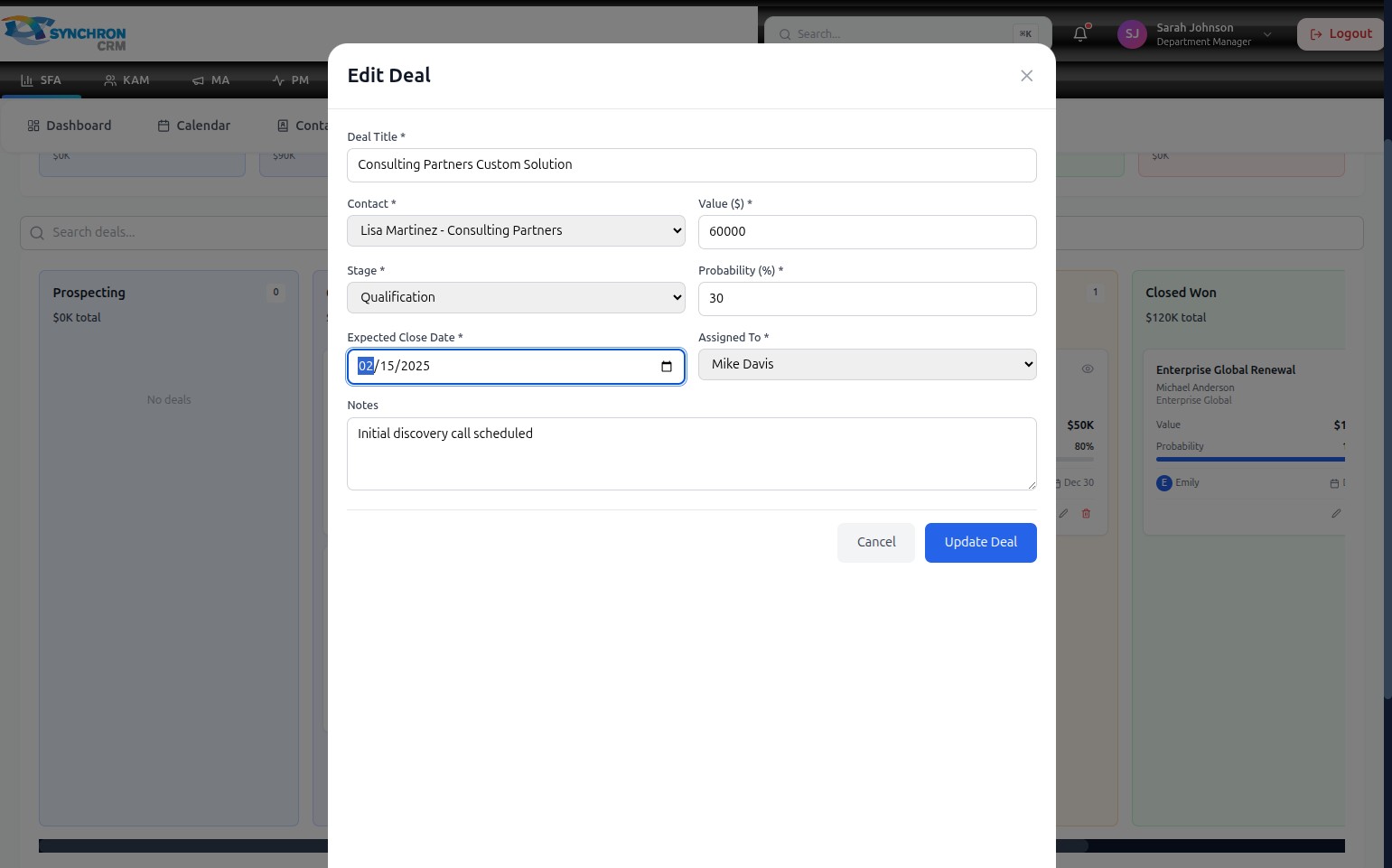
Click into the Deal Title field to rename the opportunity, or click the Contact dropdown to reassign the deal to a different contact in the system.
Step 5 — Update the expected close date
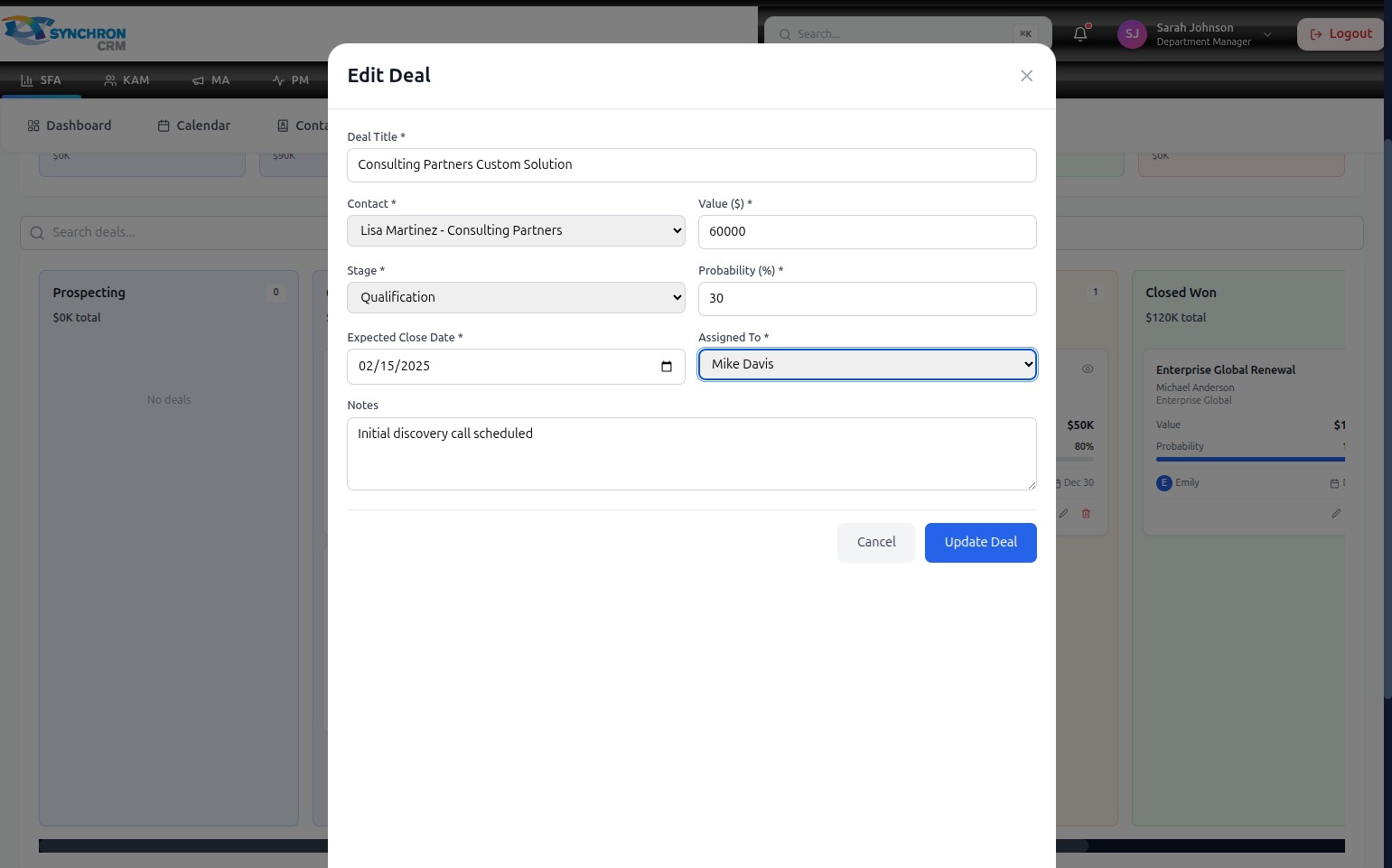
Click the Expected Close Date* field. The date picker opens — select the new date, or type directly in MM/DD/YYYY format. The close date appears on the deal card on the Kanban board.
Step 6 — Update notes
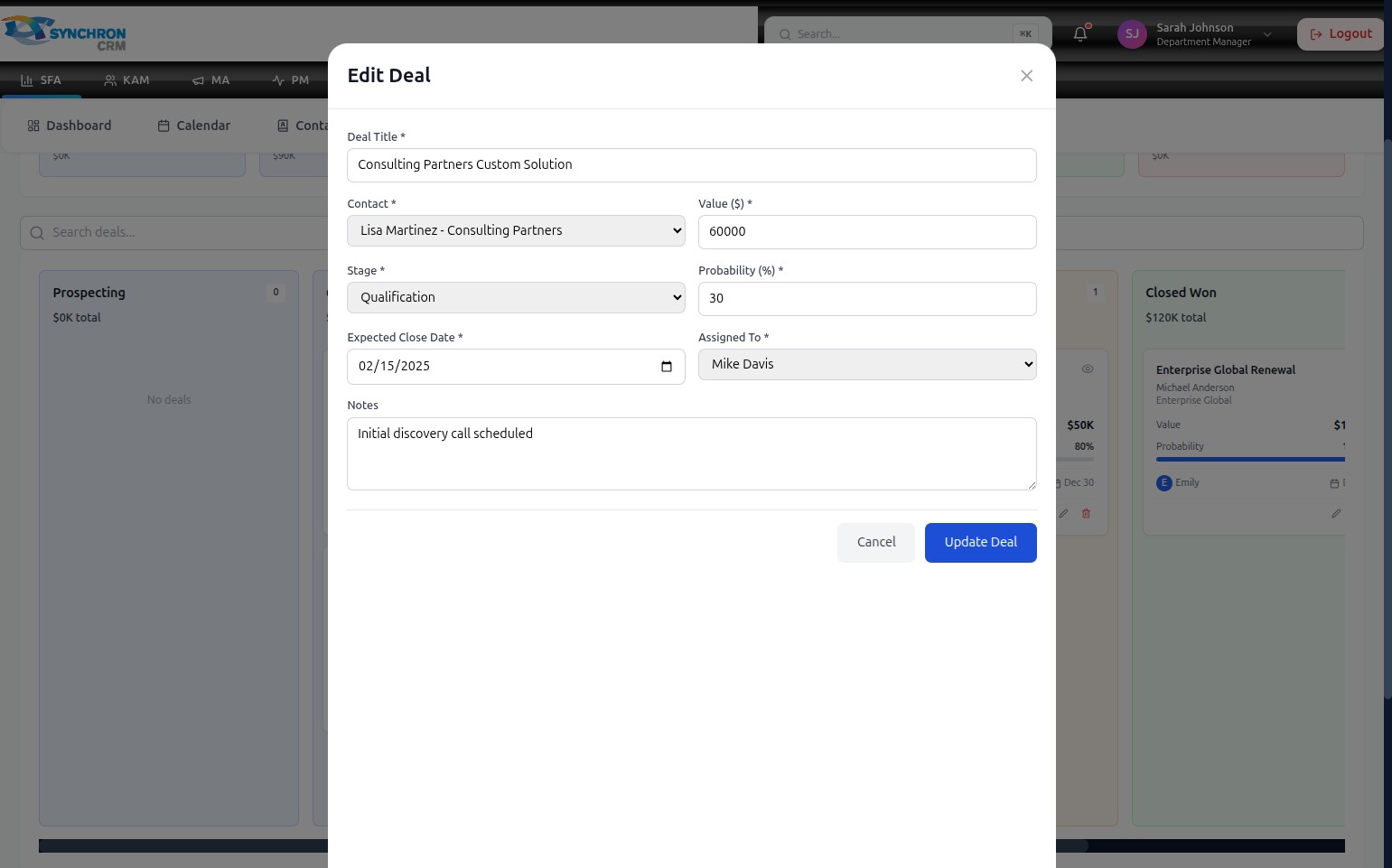
Click into the Notes text area to add new information or revise existing notes. Use this field to document recent conversations, updated requirements, or changed circumstances that affect the deal.
Step 7 — Save
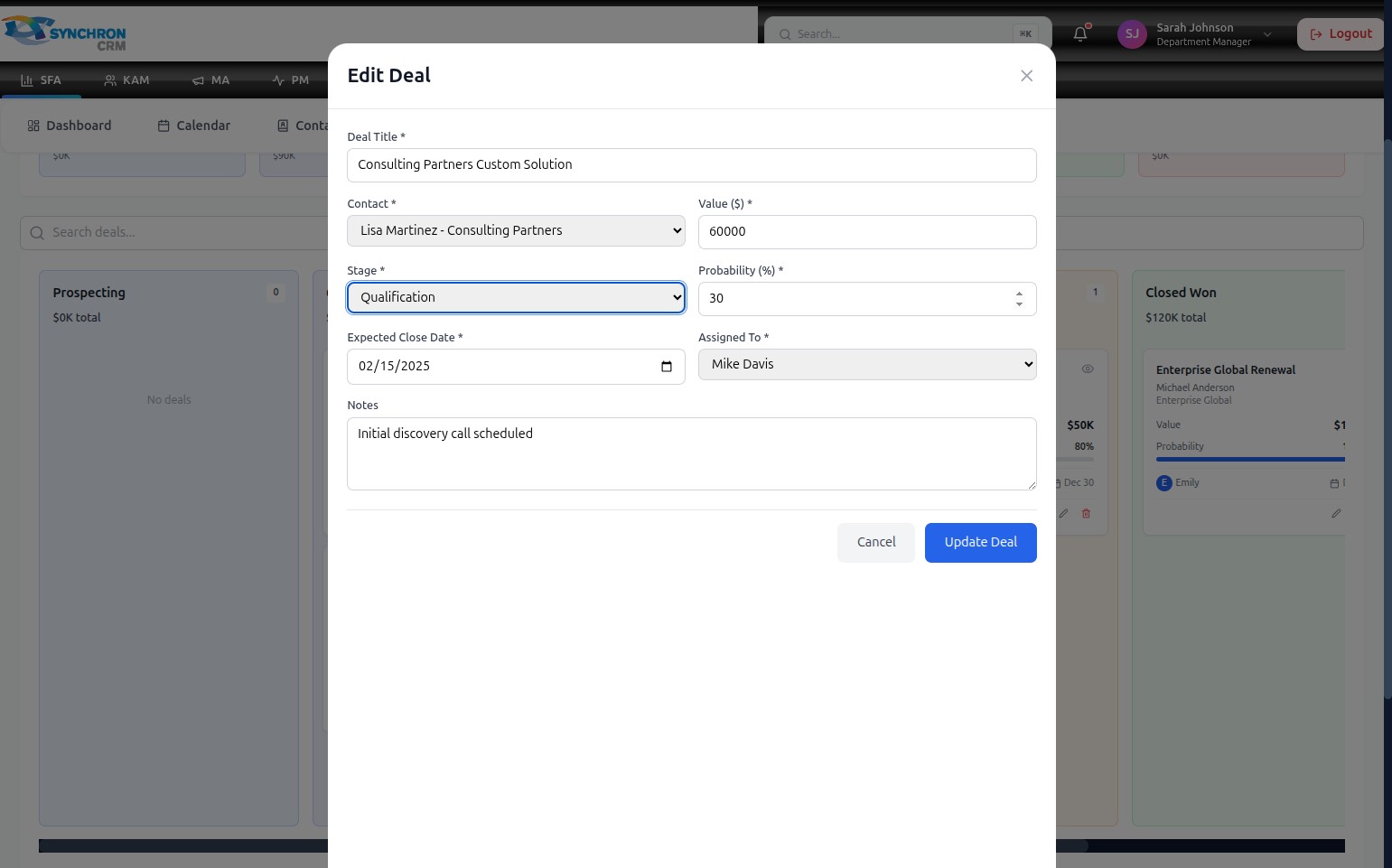
Review your changes to confirm accuracy. Click the blue Update Deal button to save all modifications. The modal closes and the pipeline board reflects the updates immediately — including the deal card moving to a new column if you changed the stage.
To discard changes without saving, click Cancel or the X icon in the top-right corner.
Fields marked with an asterisk (*) are required and must contain values before the deal can be updated. Changing the Stage may automatically update the Probability percentage based on your organisation's pipeline configuration; you can always override this manually.