Leads Overview
The Leads module provides a real-time dashboard showing pipeline statistics and a searchable, filterable table of all sales leads. Use it to monitor lead health, add new prospects, search for existing leads, and manage their lifecycle from initial capture through qualification.
Access leads
Click the Leads tab in the secondary navigation menu (between Contacts and Pipeline).
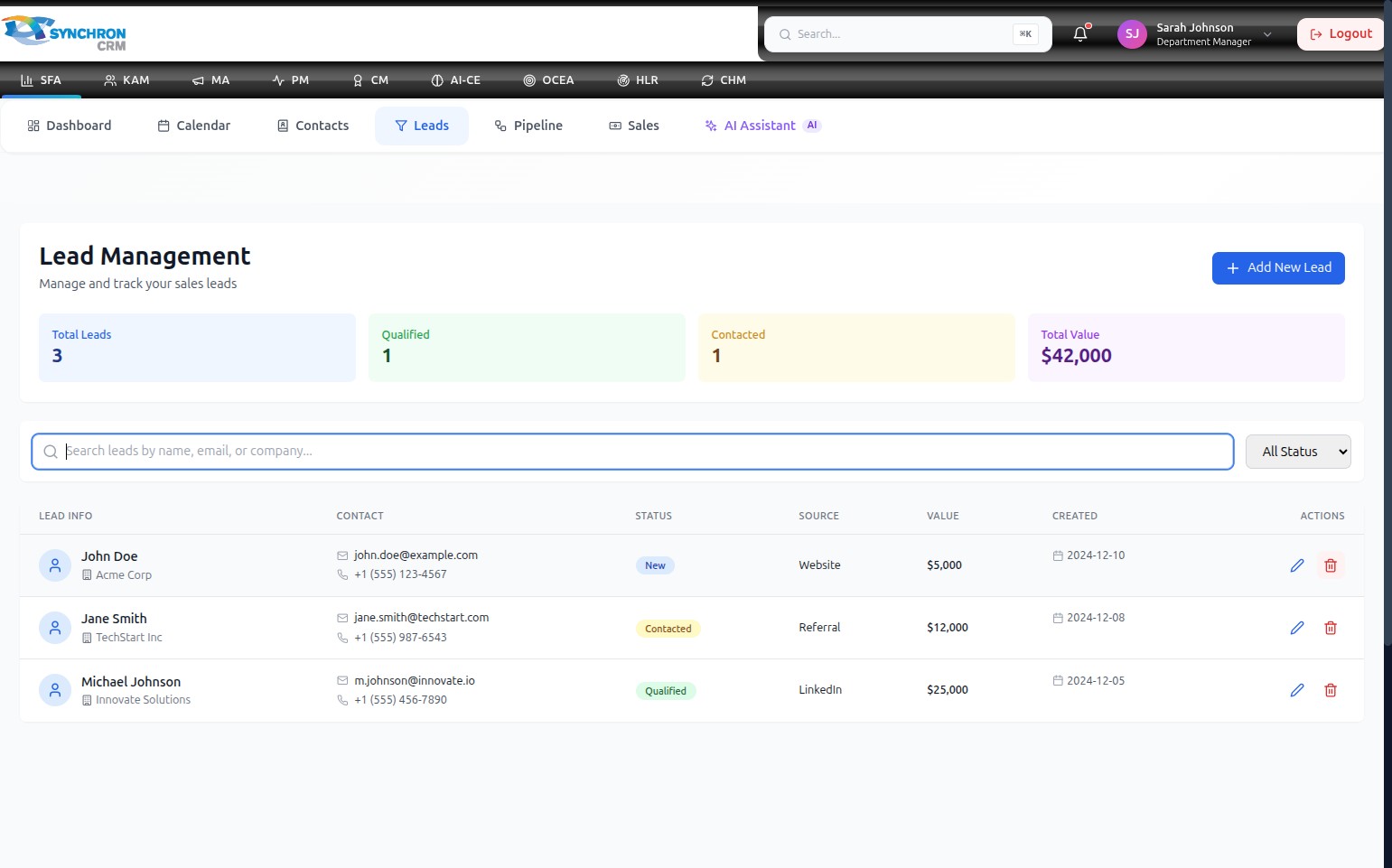
The dashboard loads with summary statistics at the top and the full leads table below.
Dashboard statistics
The four cards at the top of the page give an instant view of your lead pipeline:
| Card | What it shows |
|---|---|
| Total Leads | All leads currently in the system |
| Qualified | Leads that have been assessed and marked as qualified |
| Contacted | Leads that have been reached at least once |
| Total Value | Combined estimated value of all leads (e.g., $42,000) |
Leads table
Below the statistics cards, the table lists every lead with the following columns:
| Column | Description |
|---|---|
| Lead Info | Lead name and email address |
| Contact | Phone number |
| Status | Current stage badge (New, Contacted, Qualified, etc.) |
| Source | How the lead was acquired (e.g., Website, Referral, LinkedIn) |
| Value | Estimated potential deal value |
| Created | Date the lead was added to the system |
| Actions | Edit (pencil) and Delete (trash) icons |
Search for a lead
Click the "Search leads by name, email, or company..." field above the table and type your search term. The table filters in real-time as you type.
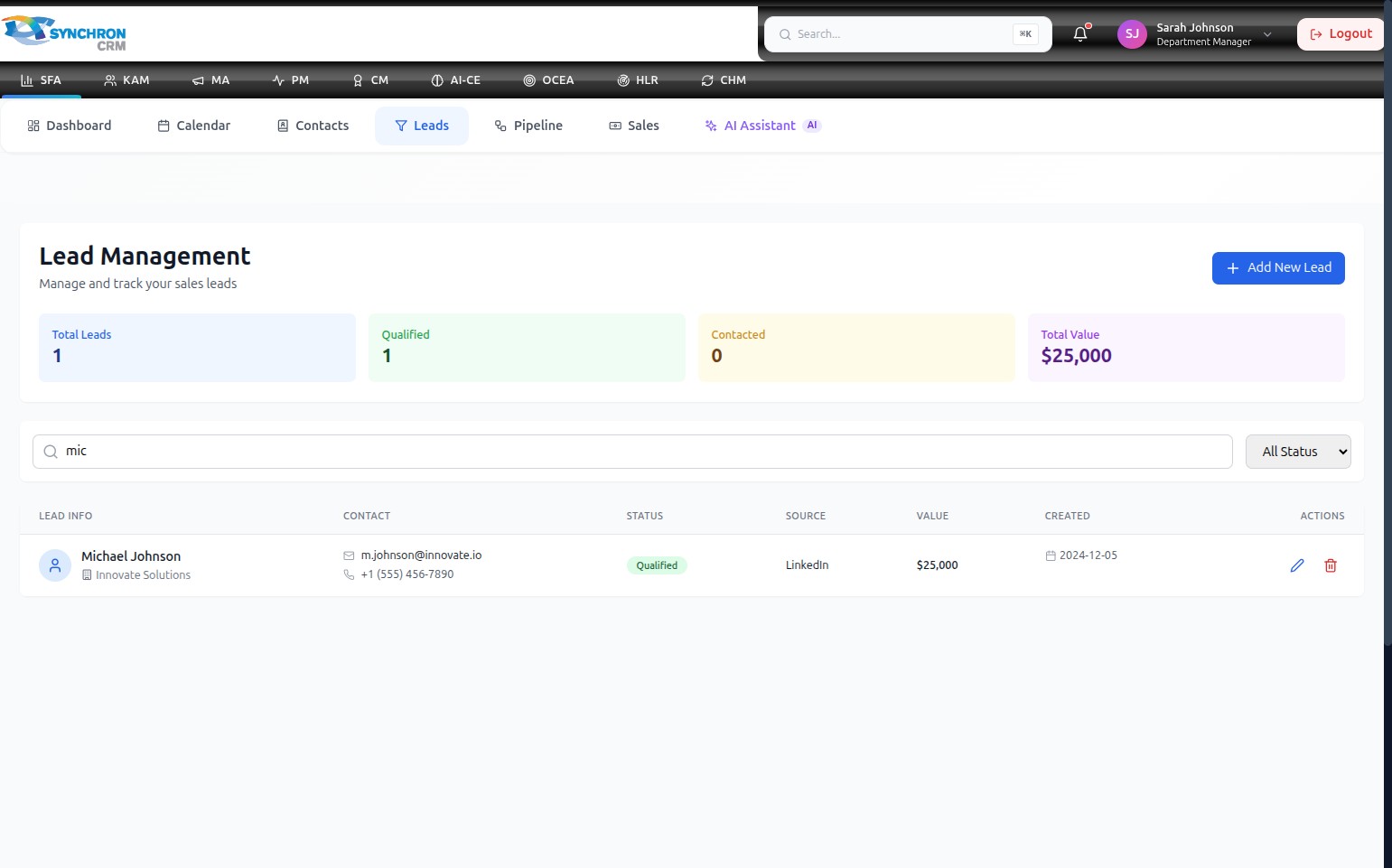
The system matches against the lead's name, email address, and company. Clear the search field to return to the full list.
Filter by status
Click the "All Status" dropdown and select a specific status to show only leads at that stage (e.g., New, Contacted, Qualified). Select All Status again to clear the filter.
Add a new lead
Click the blue + Add New Lead button in the top-right corner to open the lead creation form.
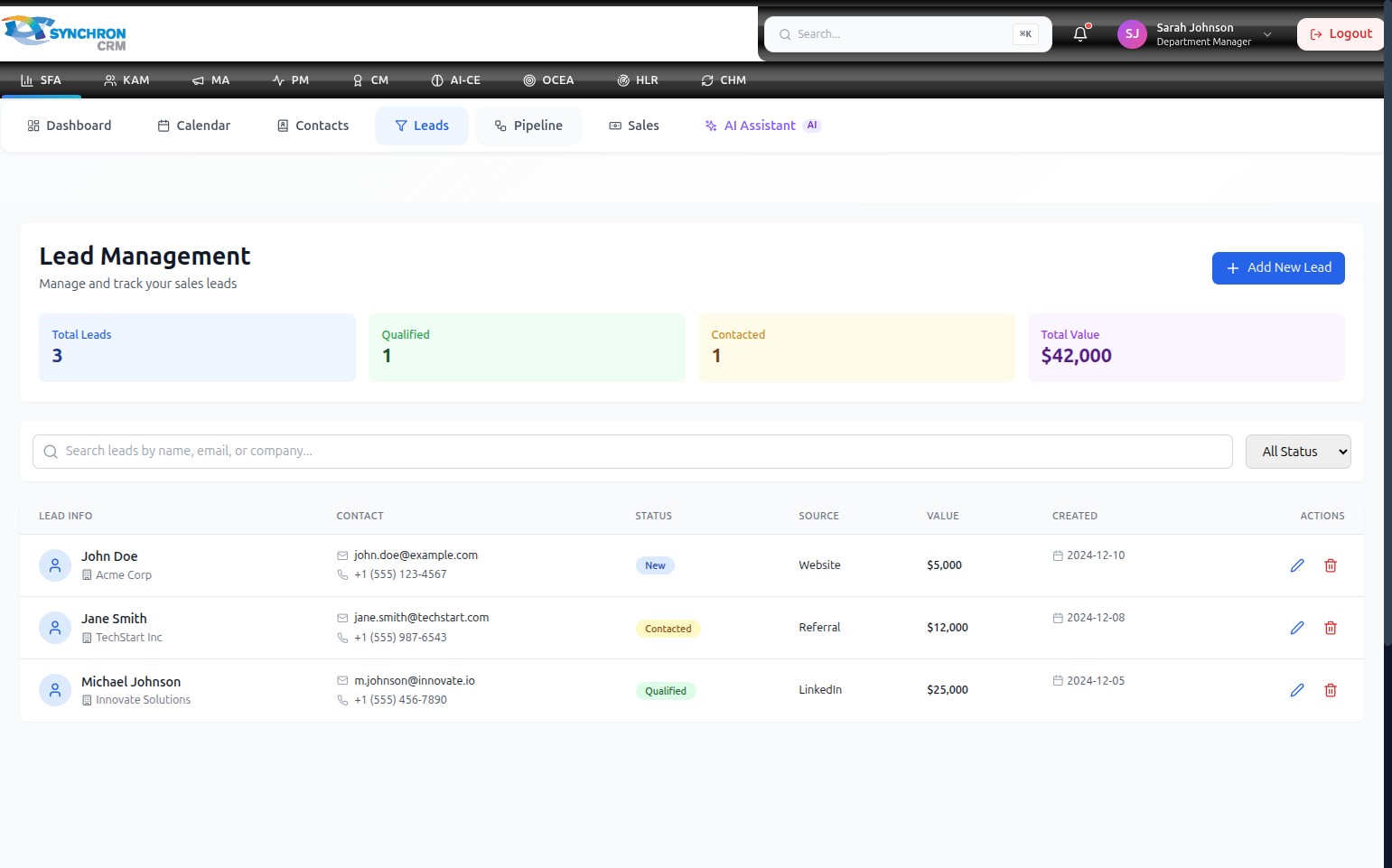
See Manage Leads for full instructions on creating and editing lead records.