Configure the Pipeline
Manage the stages in your sales pipeline by adding, editing, deleting, or reordering them. The stage order in the configuration dialog matches the left-to-right column order on the Kanban board.
Open pipeline configuration
On the Pipeline board, click the Configure Pipeline button (filter icon) in the top-right corner.
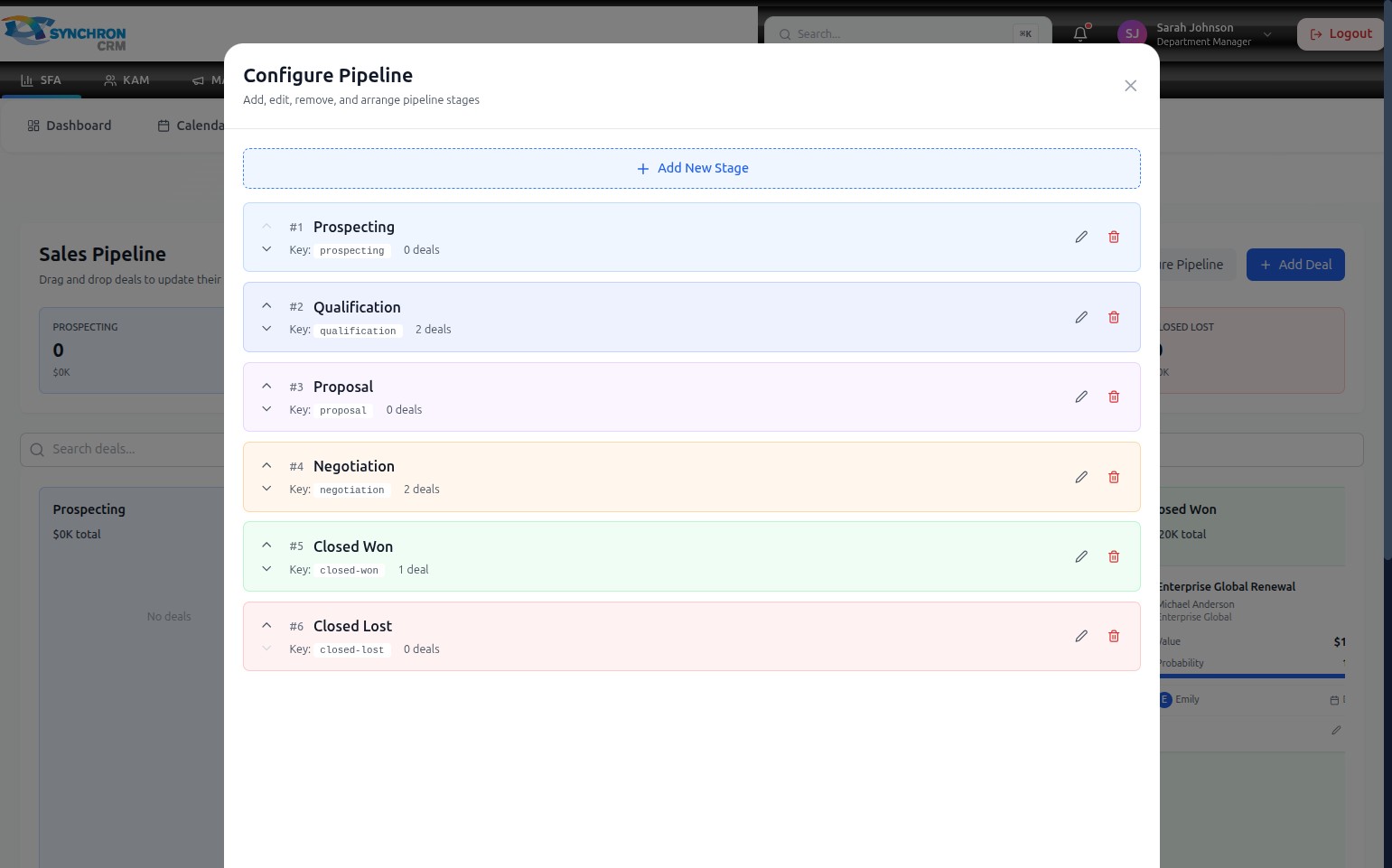
The "Configure Pipeline" dialog opens and lists all current pipeline stages. Each stage card shows:
- Stage number and display name (e.g., "#1 Prospecting")
- Stage key — the unique internal identifier (e.g., "prospecting")
- Deal count — how many active deals are in that stage (e.g., "2 deals")
- Edit (pencil icon) and Delete (trash icon) action buttons
- Expand/collapse chevron to view or hide stage details
Add a new stage
Click the + Add New Stage button at the top of the dialog to open the "Add Stage" form. See Add a Pipeline Stage for full instructions.
Edit an existing stage
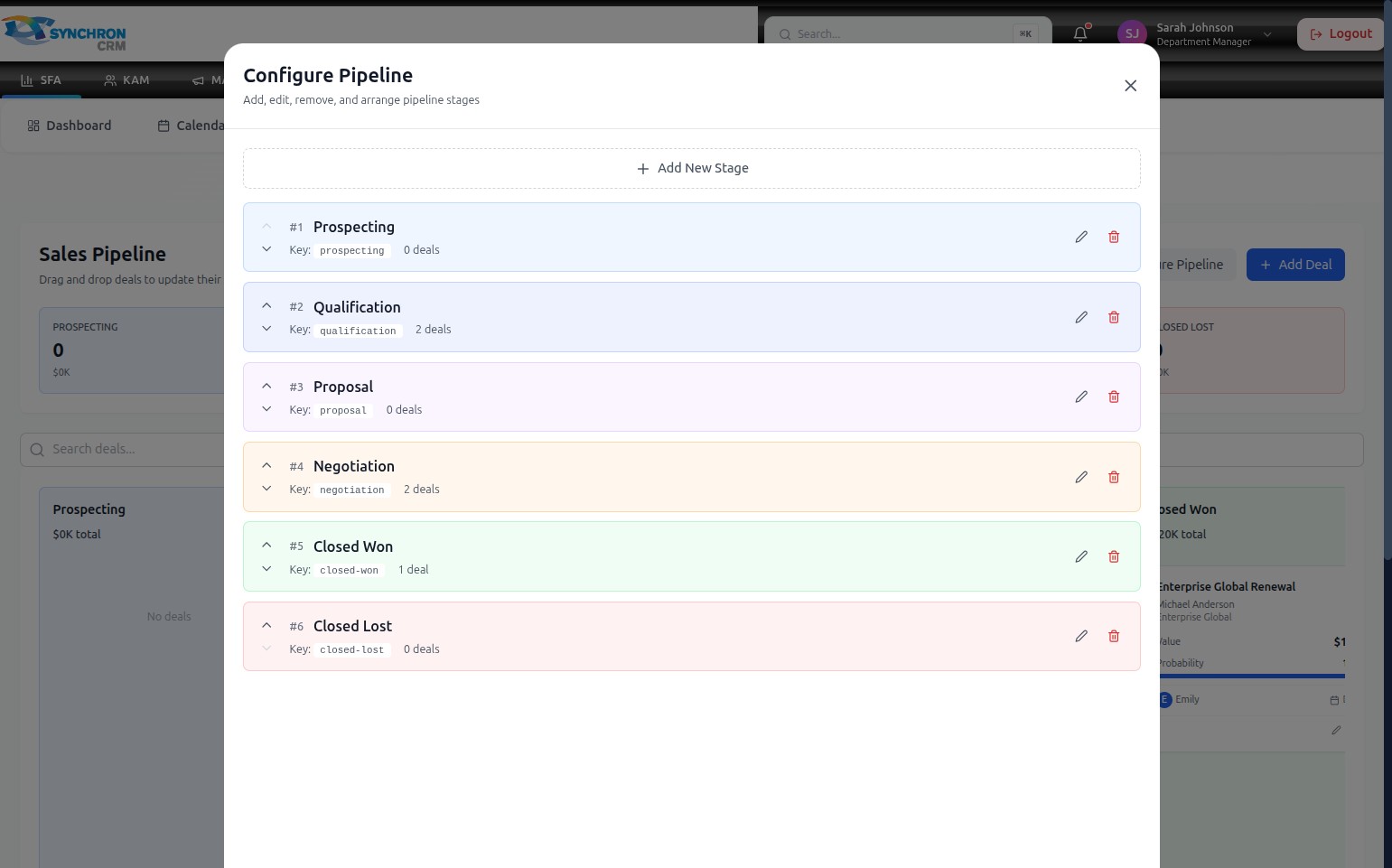
Click the pencil icon to the right of the stage name you want to modify. An edit form appears where you can:
- Update the Stage Label — the display name shown on the board
- Update the Stage Key — the unique system identifier (lowercase letters and hyphens only)
- Change the Color Theme — the colour used for that stage column
Save your changes to update the stage across the pipeline immediately.
Delete a stage
Click the trash icon next to the stage you want to remove, then confirm the deletion.
If the stage contains active deals, you may need to move those deals to another stage before the system allows deletion. Check the deal count displayed on the stage card before deleting.
Reorder stages
Drag and drop stage cards within the dialog to change their order. The sequence you set here determines the left-to-right column order on the Kanban board — deals should generally flow from left (earliest stage) to right (latest stage).
Close configuration
Click the X button in the top-right corner of the dialog, or click outside the modal, to close the configuration panel and return to the pipeline board. Changes are saved automatically as you make them.