Calendar Overview
Use the Calendar module to view, filter, and navigate all your scheduled appointments and events. You can switch between Month, Week, and Day views to find the level of detail you need, and filter by event category to focus on what matters.
Access the calendar
Click the Calendar tab in the secondary navigation menu (between Dashboard and Contacts) to open the scheduling interface.
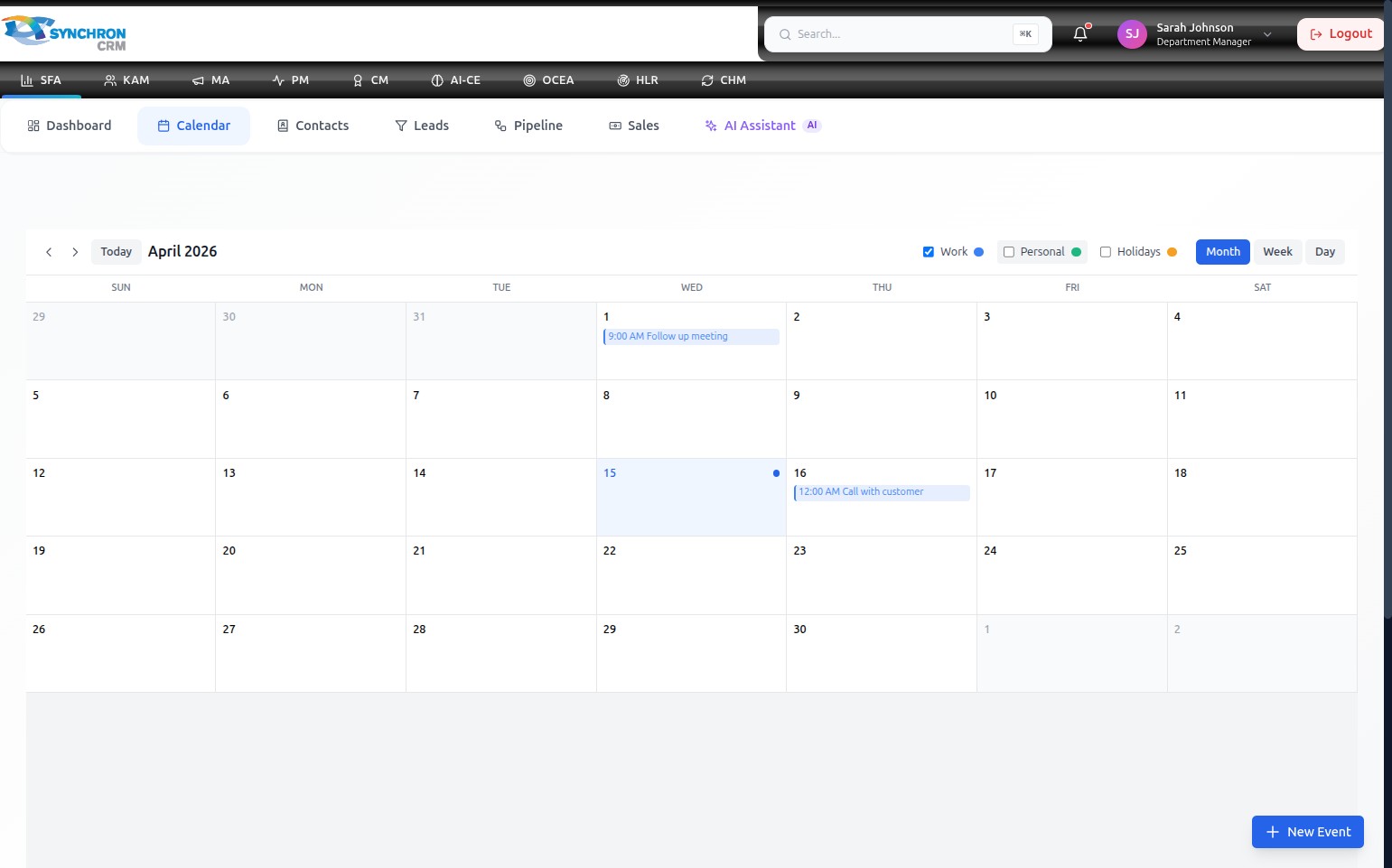
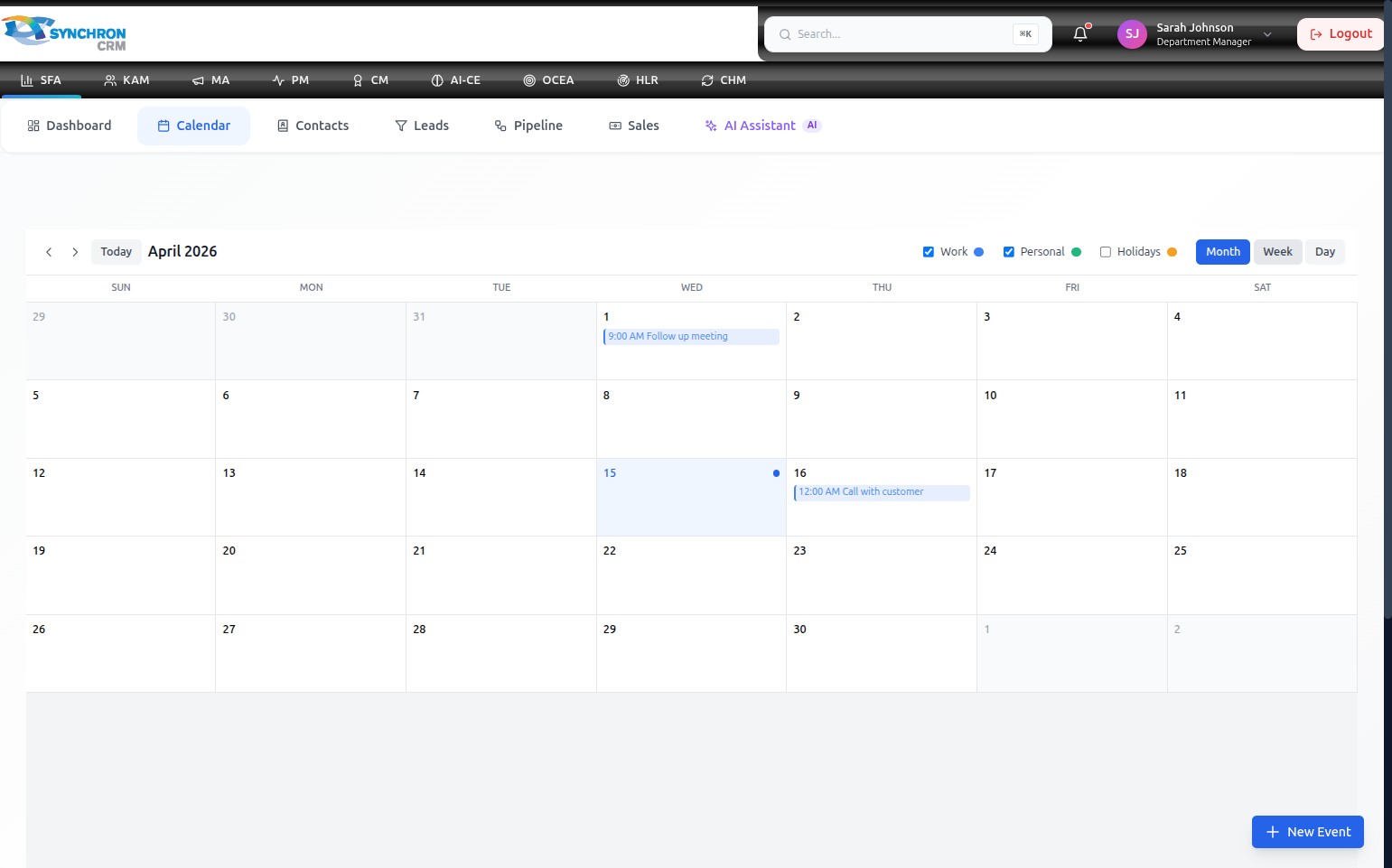
The calendar opens in Month view by default, displaying a full monthly grid with event entries shown inside each day cell.
Month view
Month view gives you an at-a-glance overview of the entire month. Each day cell shows any scheduled events with their start time (e.g., "9:00 AM Follow up meeting").
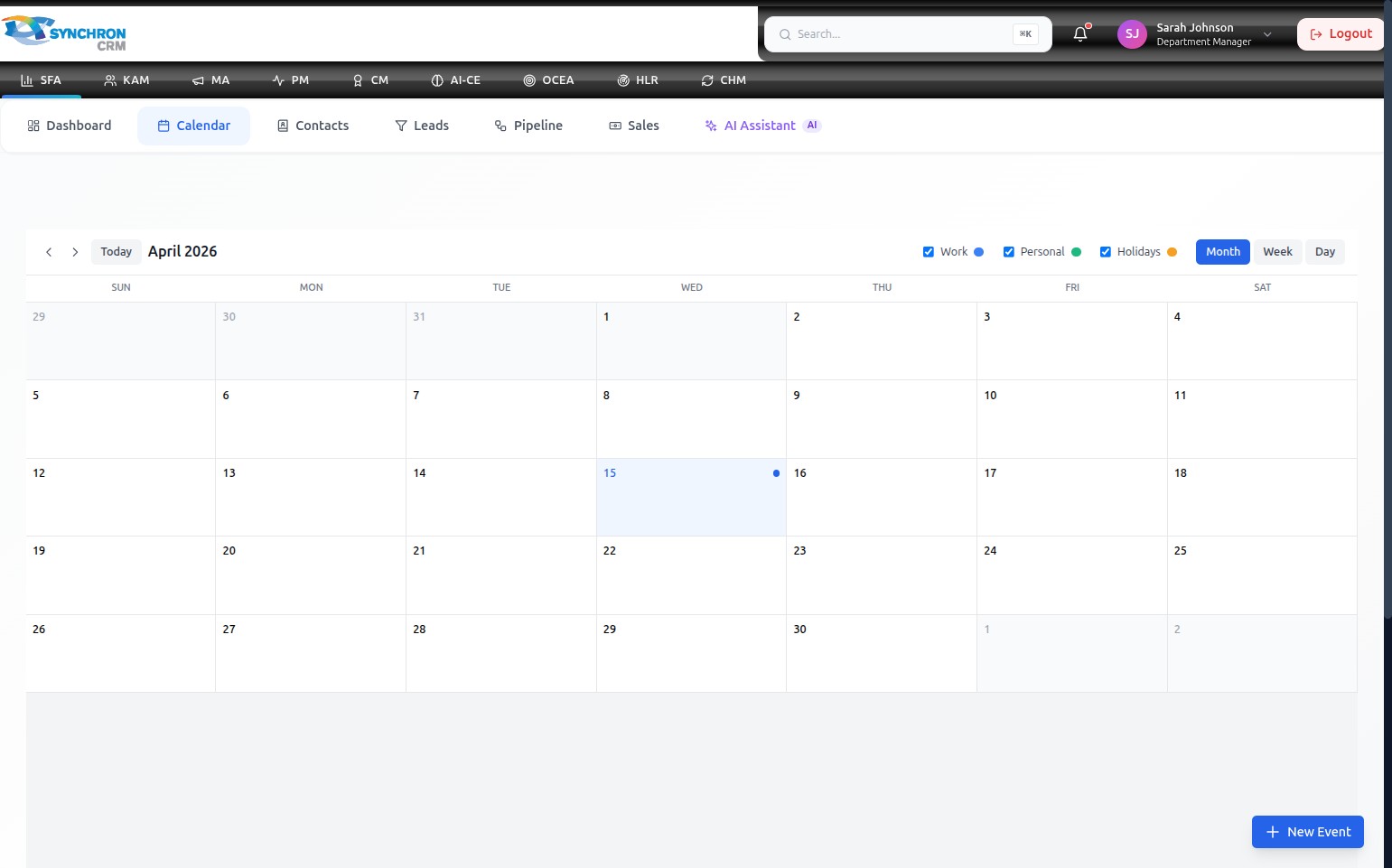
- The current date is highlighted with a blue dot.
- Days from the previous or next month are shown in a lighter color.
- Click any event entry to view its full details or edit it.
- Click
<or>to move to the previous or next month. - Click Today to jump back to the current month.
Month view with scheduled events
When events are scheduled, they appear in the relevant date cells with their start time:
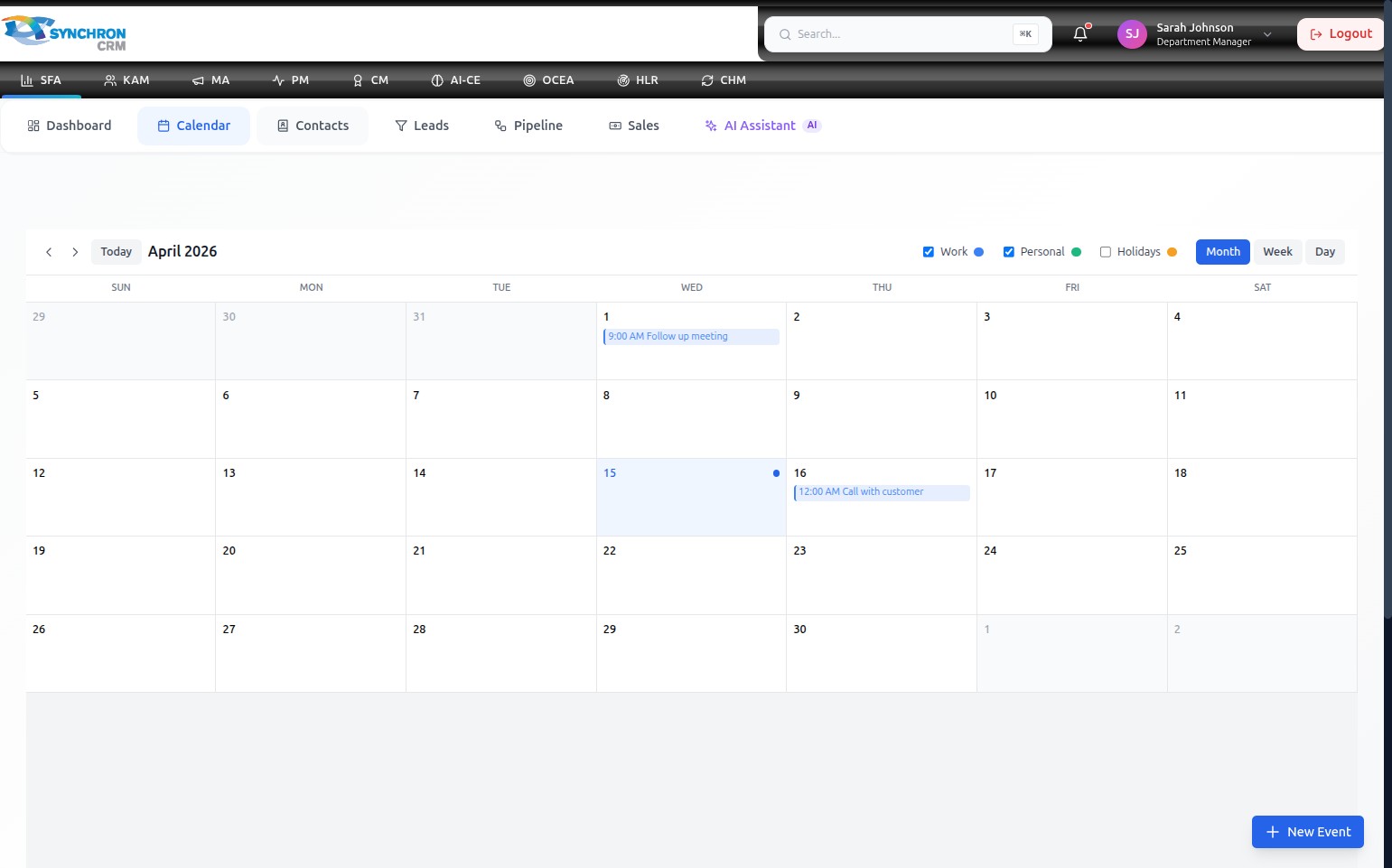
Each event entry shows the time and title. Click any event to open its details, or click the date cell itself to create a new event on that date.
Month view — full calendar grid
The month grid provides a complete view of all events across the entire month:
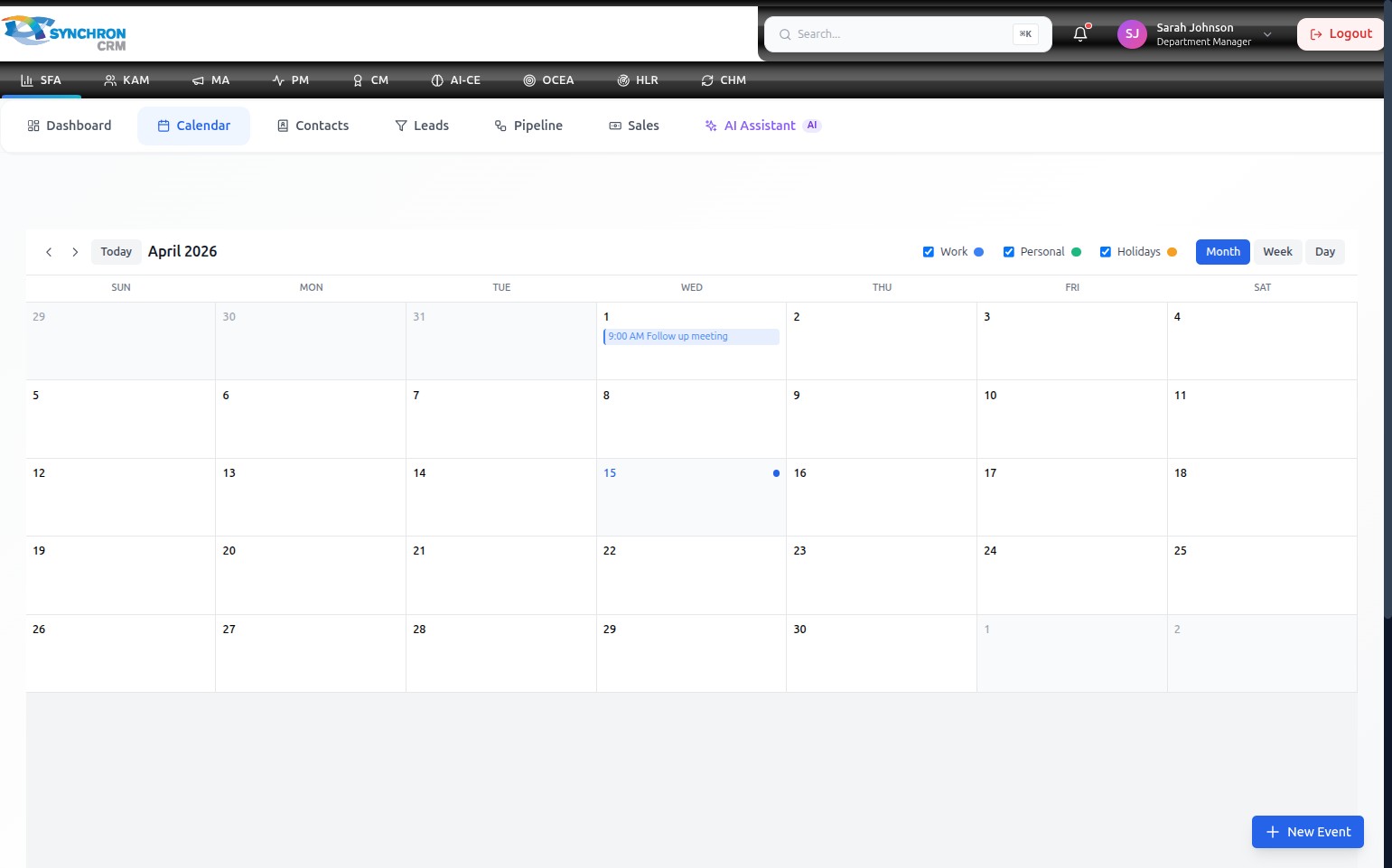
Use the < and > arrows in the top-left area to navigate between months. The Today button returns you to the current date immediately.
Filter events by category
Use the checkboxes above the calendar grid to show or hide events by type:
| Checkbox | Colour | Event type |
|---|---|---|
| Work | Blue | Work-related meetings and tasks |
| Personal | Green | Personal appointments |
| Holidays | Orange | Public or company holidays |
Uncheck a category to hide those events from the view; re-check it to show them again. This works in all three views.
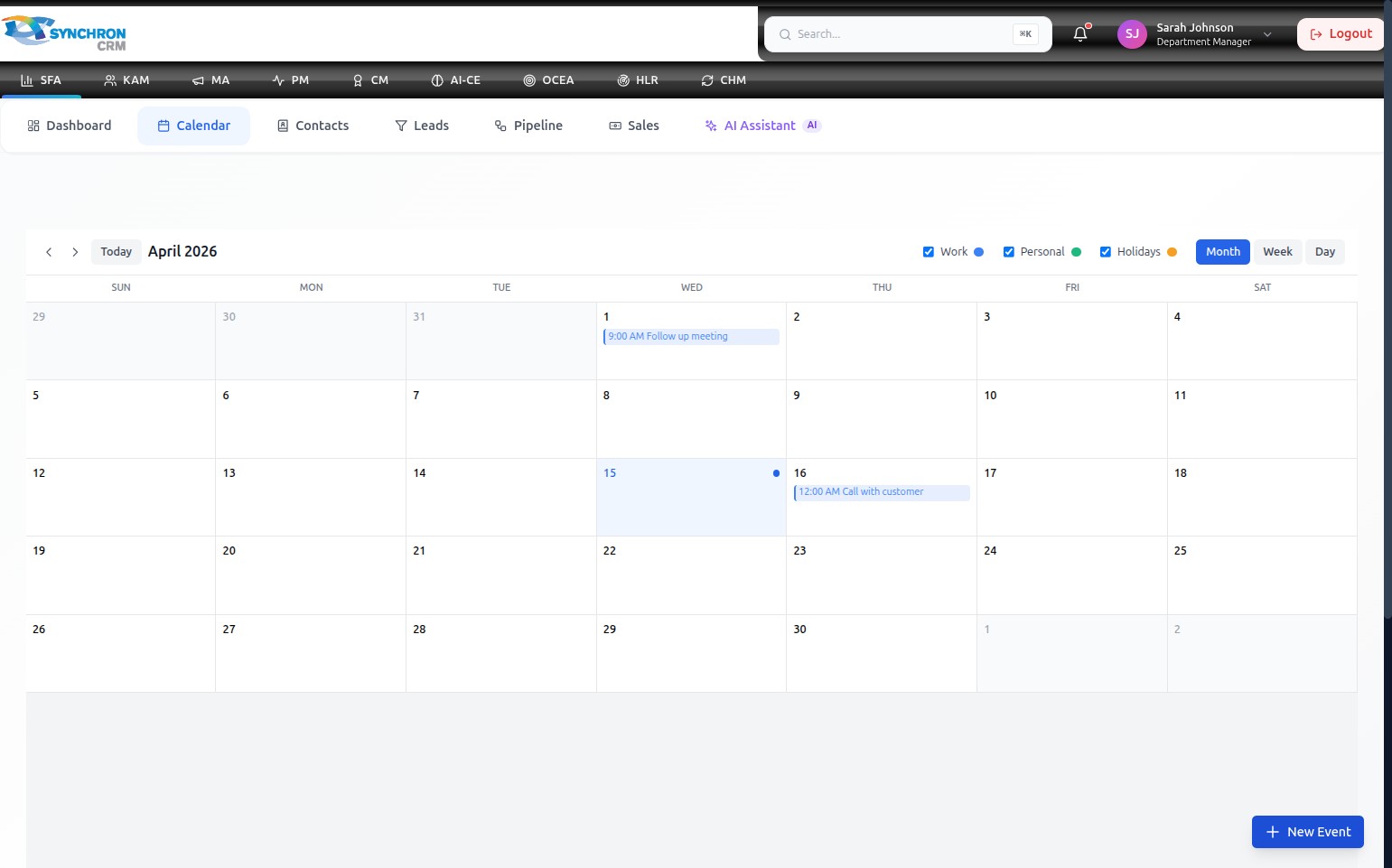
Month view with events and filters applied
When filters are active and events are populated, the month view shows only the categories you have enabled:
Week view
Week view shows a 7-day grid with hourly time slots, letting you see exactly when events are scheduled within each day.
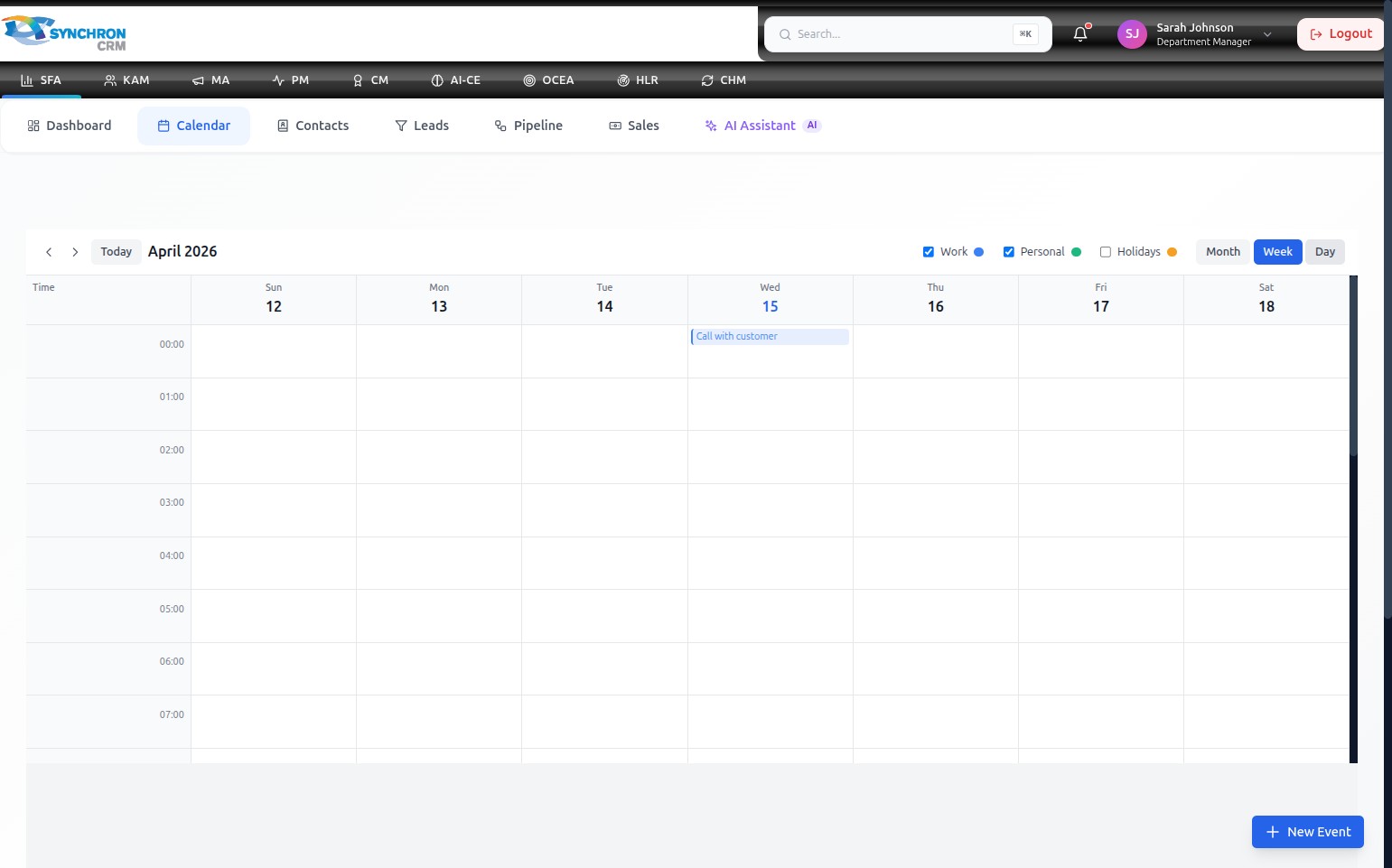
- Days run across columns (Sun through Sat); time runs down rows (00:00 to 23:00).
- Scheduled events appear as colored blocks in the relevant time slot.
- Click
<or>to move to the previous or next week. - Click any event block to view or edit it.
To switch to Week view, click the Week button in the view controls at the top-right of the calendar.
Day view
Day view focuses on a single date, displaying an hourly schedule from 00:00 to 23:00. Use this when you need to review your availability for a specific day in detail.
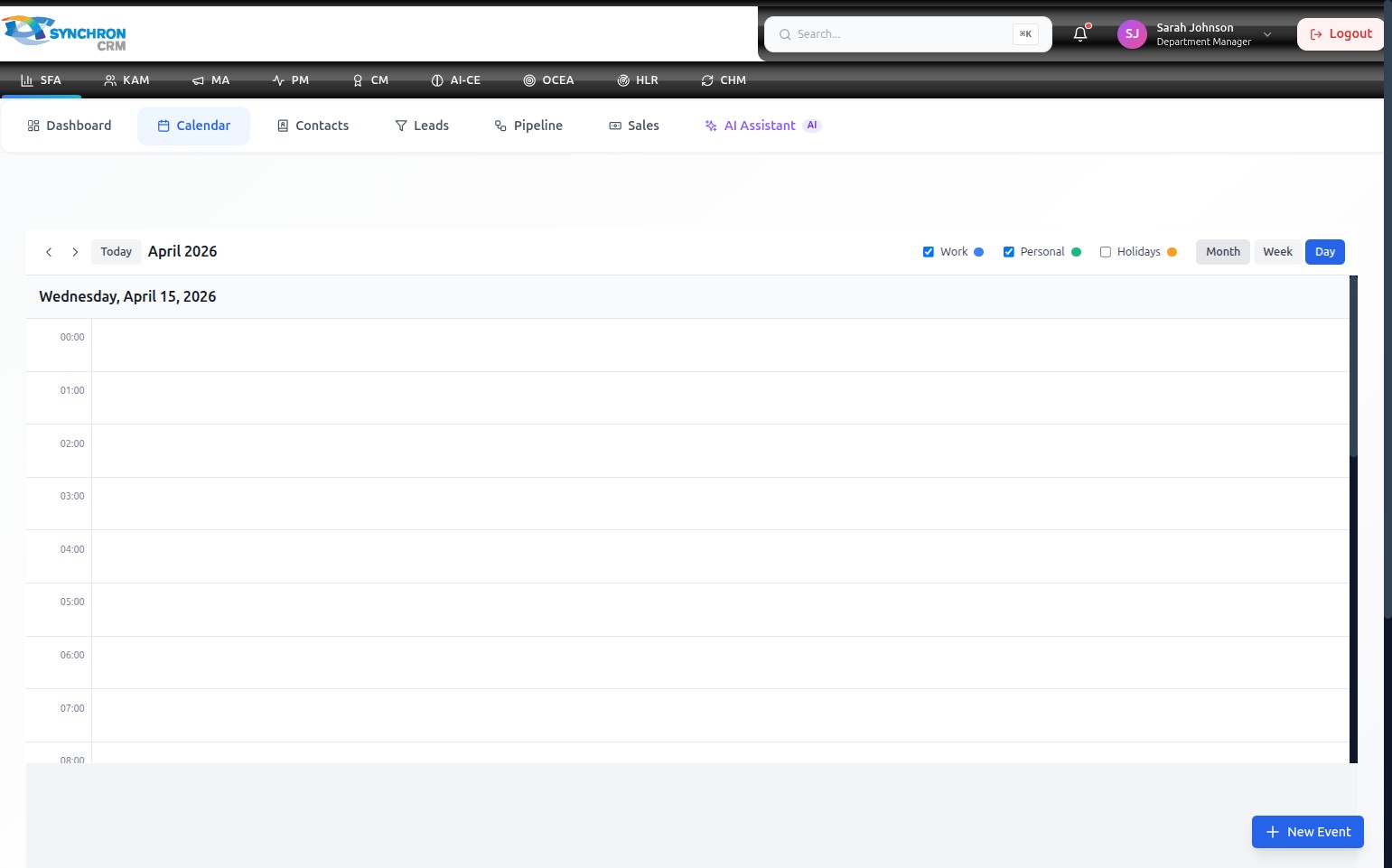
- Click
<or>to navigate to the previous or next day. - Click Today to return to the current date.
- Click the + New Event button to add an appointment to the displayed day.
To switch to Day view, click the Day button in the view controls.
Add a new event
Click the blue + New Event button in the bottom-right corner of the screen to open the event creation dialog. See Create a Calendar Event for full instructions.
In Week or Day view, you can click directly on an empty time slot in the grid to pre-fill the date and time when the new event dialog opens.