Log In to SYNCHRON SFA
Log in to the SYNCHRON SFA system using your assigned username and password. The login screen is the first screen you see when you open the application URL. If you have forgotten your password, you can start a reset directly from this page.
The login screen
Navigate to the SYNCHRON SFA application URL in your web browser. The login screen loads automatically.
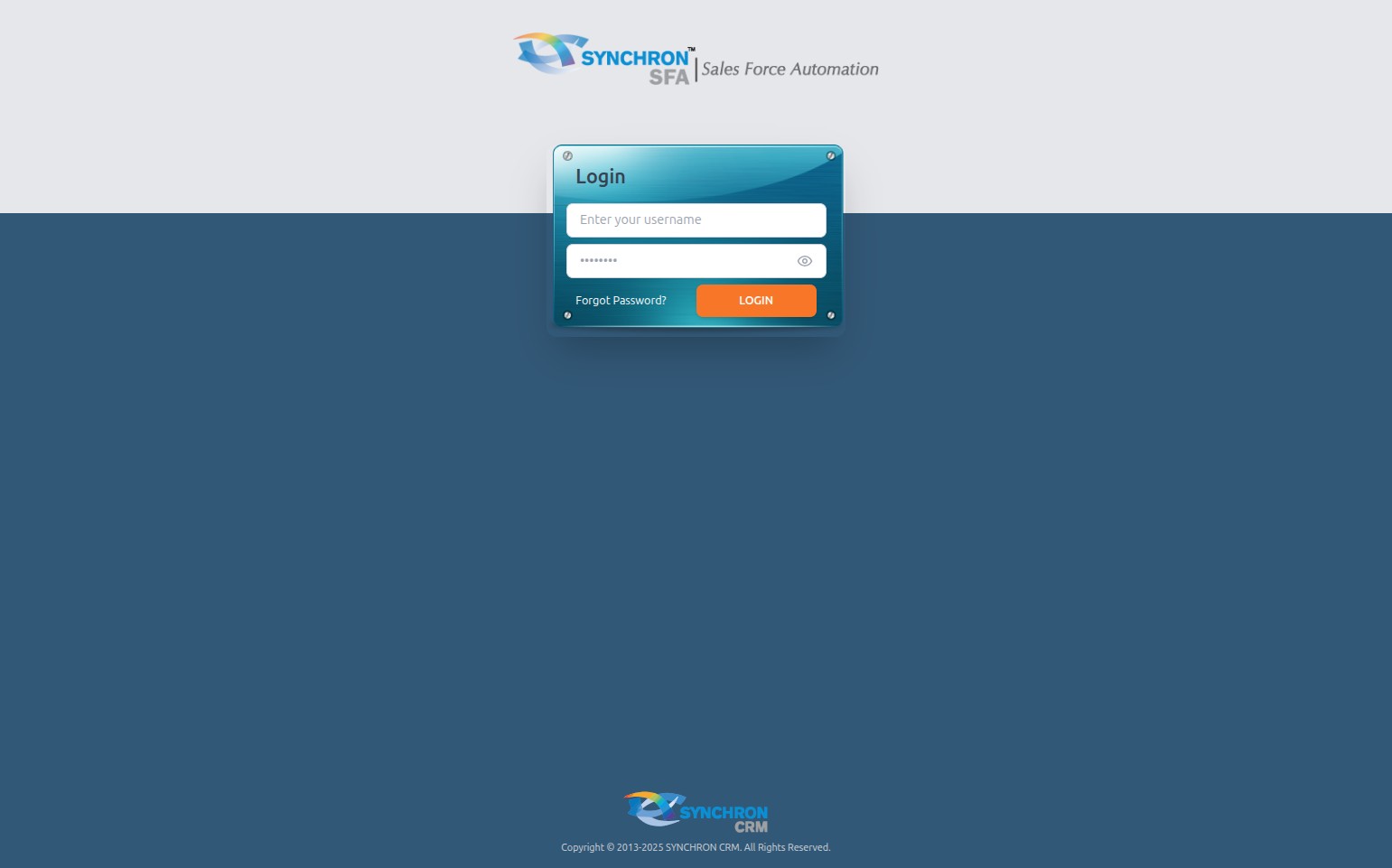
The login screen displays:
- The SYNCHRON SFA header logo and branding
- A Username text field with placeholder "Enter your username"
- A Password field with a visibility toggle icon
- A "Forgot Password?" recovery link
- An orange LOGIN button
Step 1 — Enter your username
Click inside the "Enter your username" field and type your assigned system username.
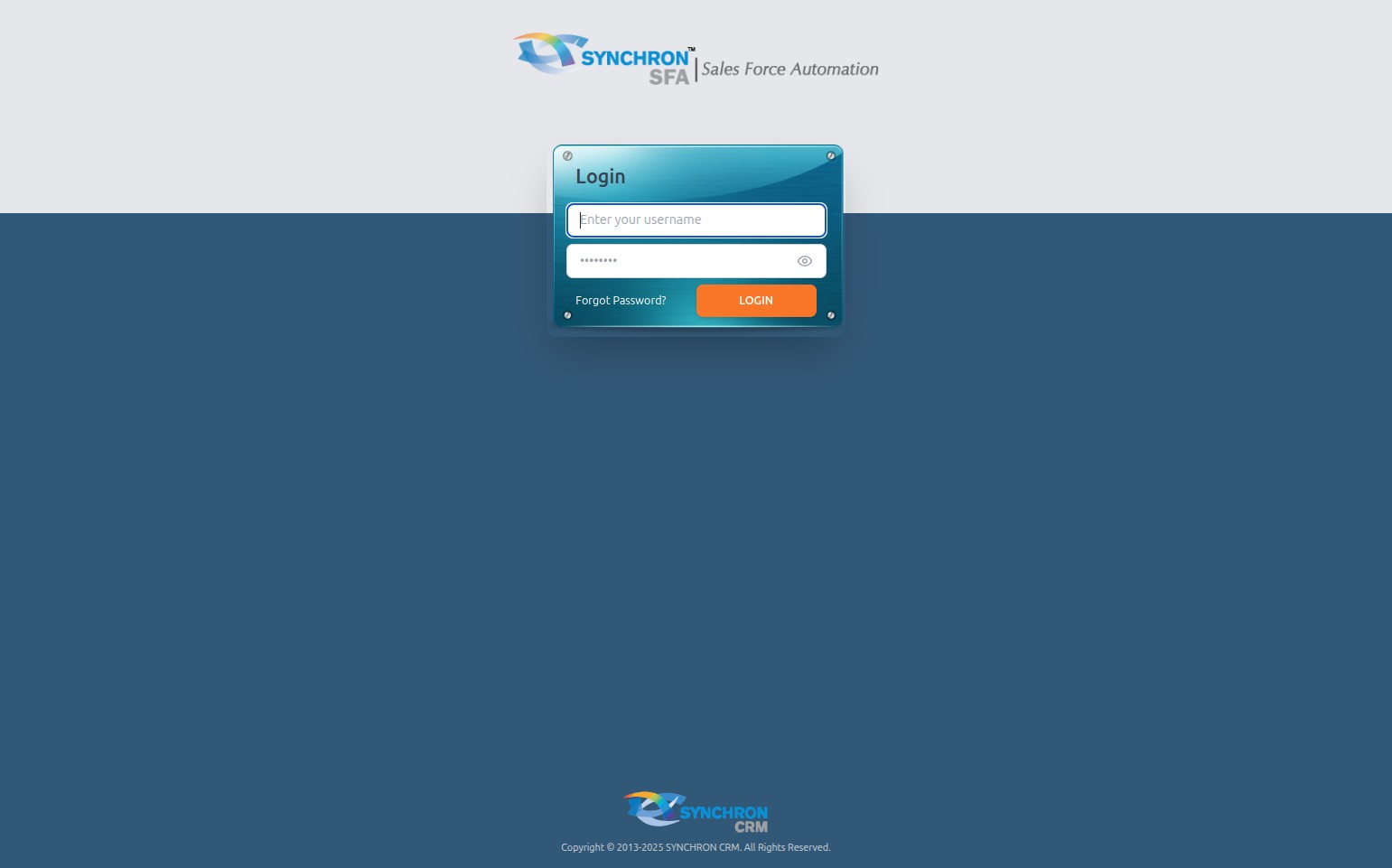
Usernames are case-sensitive — confirm the exact casing with your system administrator if you are unsure. Do not add spaces before or after the username.
Step 2 — Enter your password
Click inside the Password field and type your password. As you type, each character is masked as a dot ( • ) for security.
- If you need to verify what you have typed, click the eye icon ( 👁 ) on the right side of the password field to temporarily reveal the characters. Click it again to re-mask the password.
- Make sure Caps Lock is off, as passwords are case-sensitive.
Step 3 — Submit
Click the orange LOGIN button to authenticate. The system will verify your credentials and, if correct, redirect you to the SFA dashboard.
If authentication fails, check that:
- Your username is correct and uses the right casing
- Your password has no extra spaces before or after it
- Caps Lock is not on
Step 4 — Password recovery (optional)
If you cannot remember your password, click the "Forgot Password?" link below the LOGIN button. The system will guide you through the password reset process — typically by sending a reset link to your registered email address.
Your login credentials are assigned by your system administrator. Contact them directly if you do not have an account, if your account has been locked, or if the password reset link does not arrive.