Sales Records
Browse and manage all recorded sales transactions in a tabular view. Search by customer, product, or deal reference, and filter by revenue type or status to narrow the list. You can view, edit, or delete any record from this screen.
Access sales records
- Click the Sales tab in the secondary navigation menu.
- Click the Records sub-tab within the Sales module (beside Dashboard, Targets, Analytics, and Performance).
The Sales Records table loads with all recorded transactions.
Understand the table columns
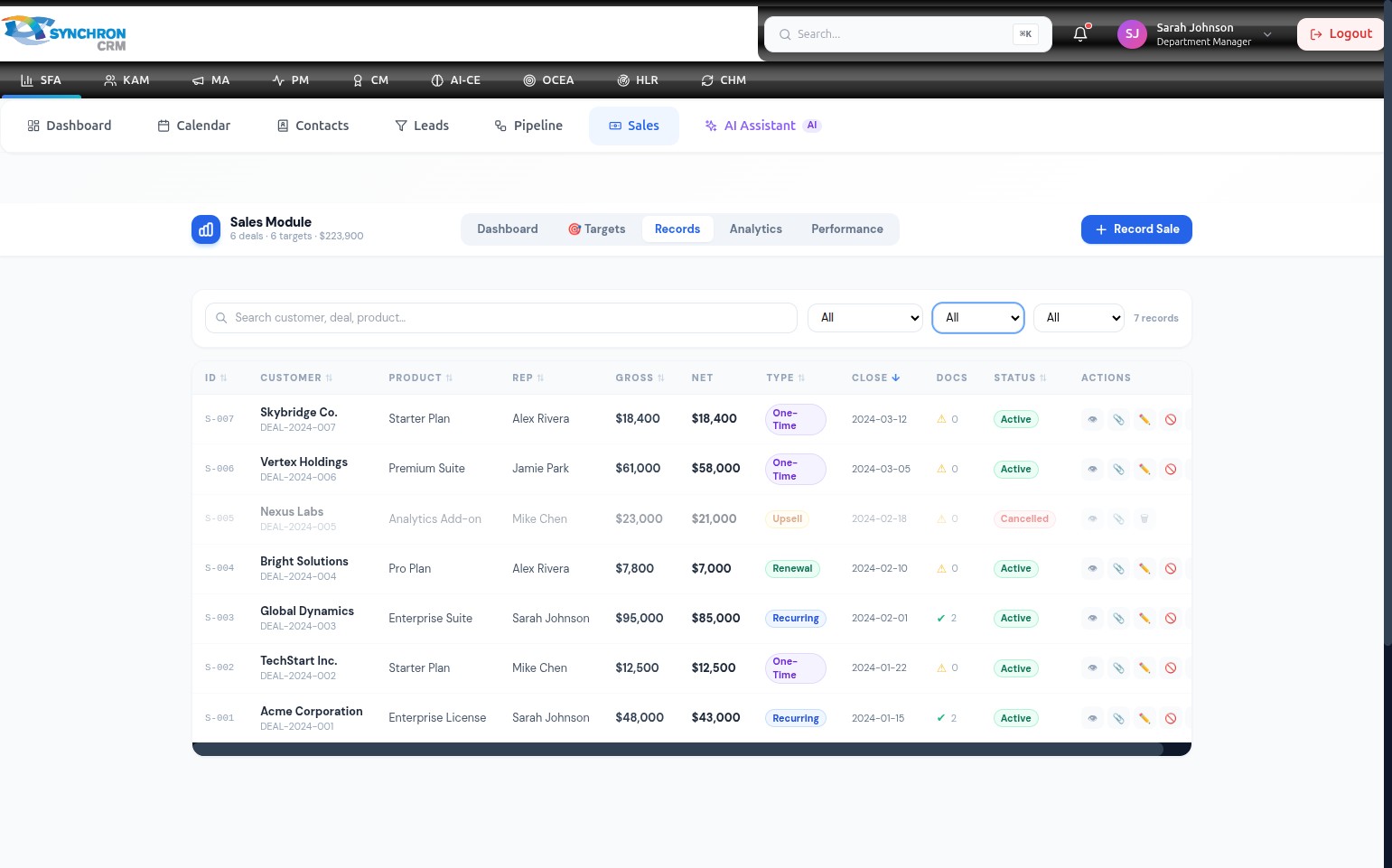
| Column | Description |
|---|---|
| ID | Unique deal identifier (e.g., DEAL-2024-007) |
| Customer | Customer name |
| Product | Product or service sold |
| Rep | Assigned sales representative |
| Gross | Gross deal value before discount |
| Net | Net deal value after discount |
| Type | Revenue type badge — One-Time, Recurring, Upsell, Renewal |
| Close | Deal close date |
| Docs | Indicator for attached documents |
| Status | Deal status badge — Active, Cancelled, etc. |
| Actions | View, Edit, and Delete icon buttons |
Filter by revenue type
Use the revenue type filter dropdown to display only deals matching a specific type:
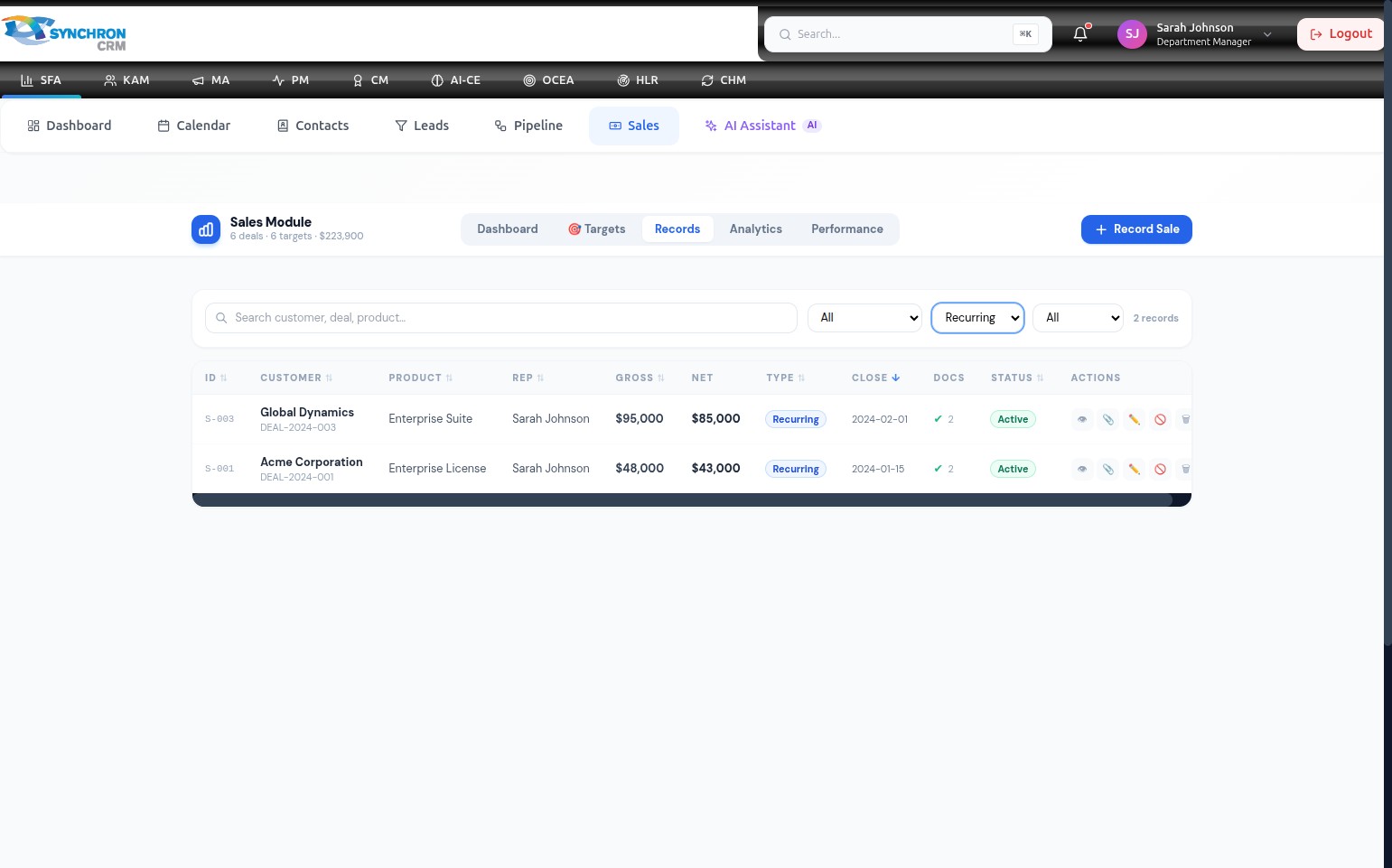
Click the revenue type dropdown (showing "All" by default) and select a specific type — for example, Recurring — to display only deals of that category. Select All again to clear the filter.
Filter by status
Click the status dropdown to filter the table to show only deals at a specific status (e.g., Active, Cancelled, Pending).
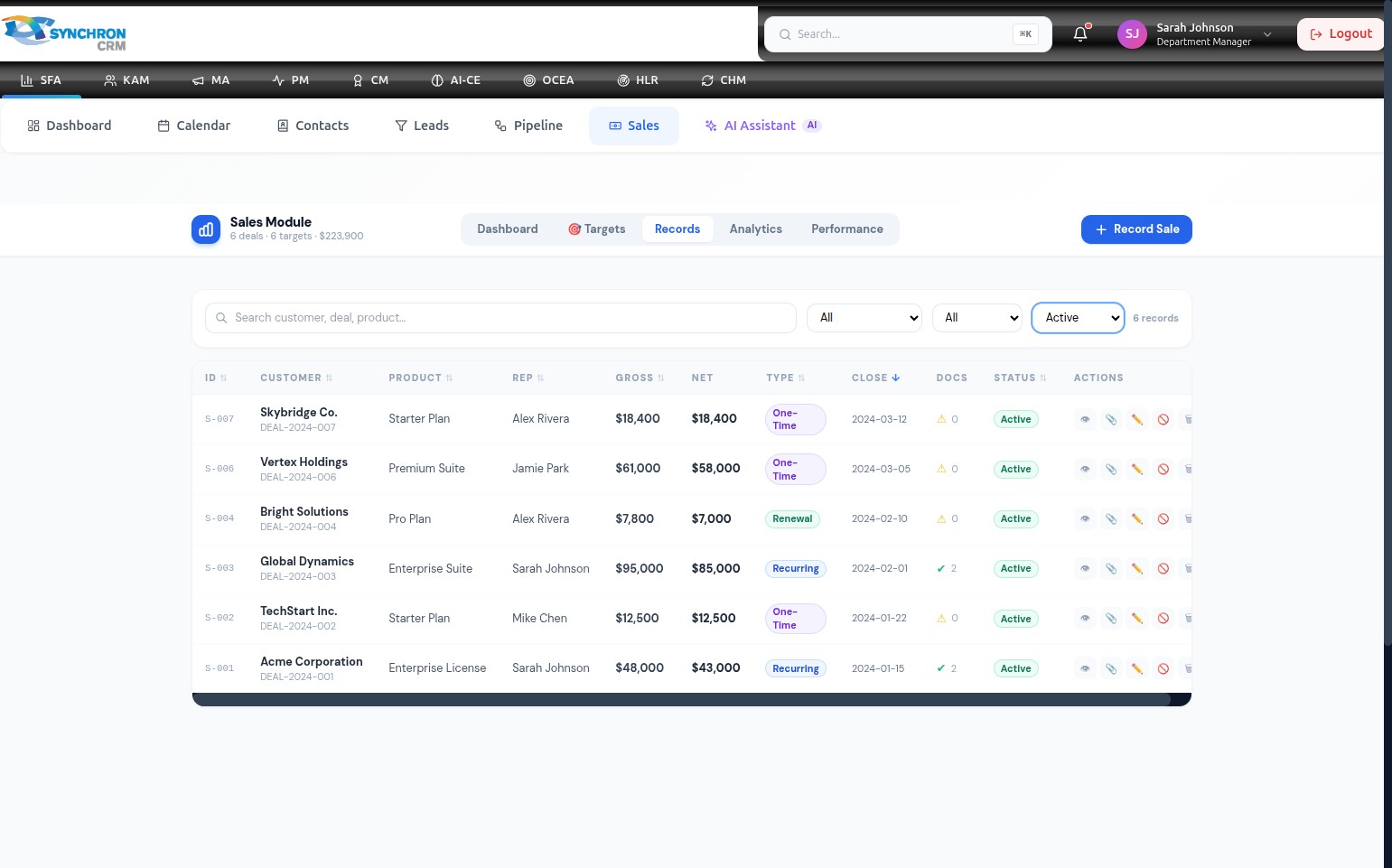
To clear the status filter and return to the full list, click the dropdown again and select All.
View deal details
Click the eye icon in the Actions column to open a read-only view of the full sale record.
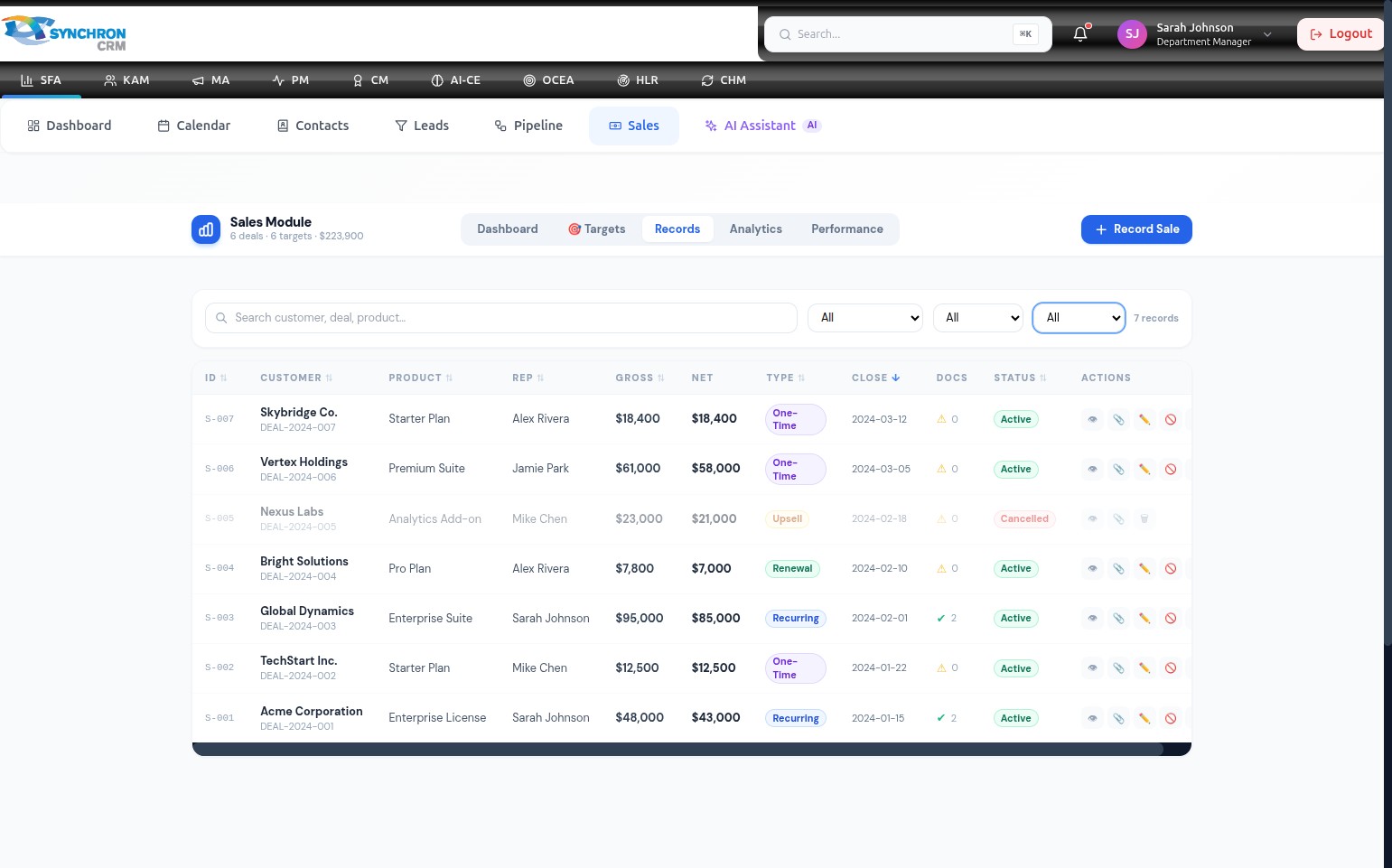
The Details panel displays all information for that record: customer details, deal reference, product, value, close date, revenue type, payment terms, currency, status, and any attached documents or notes.
View the full deal details panel
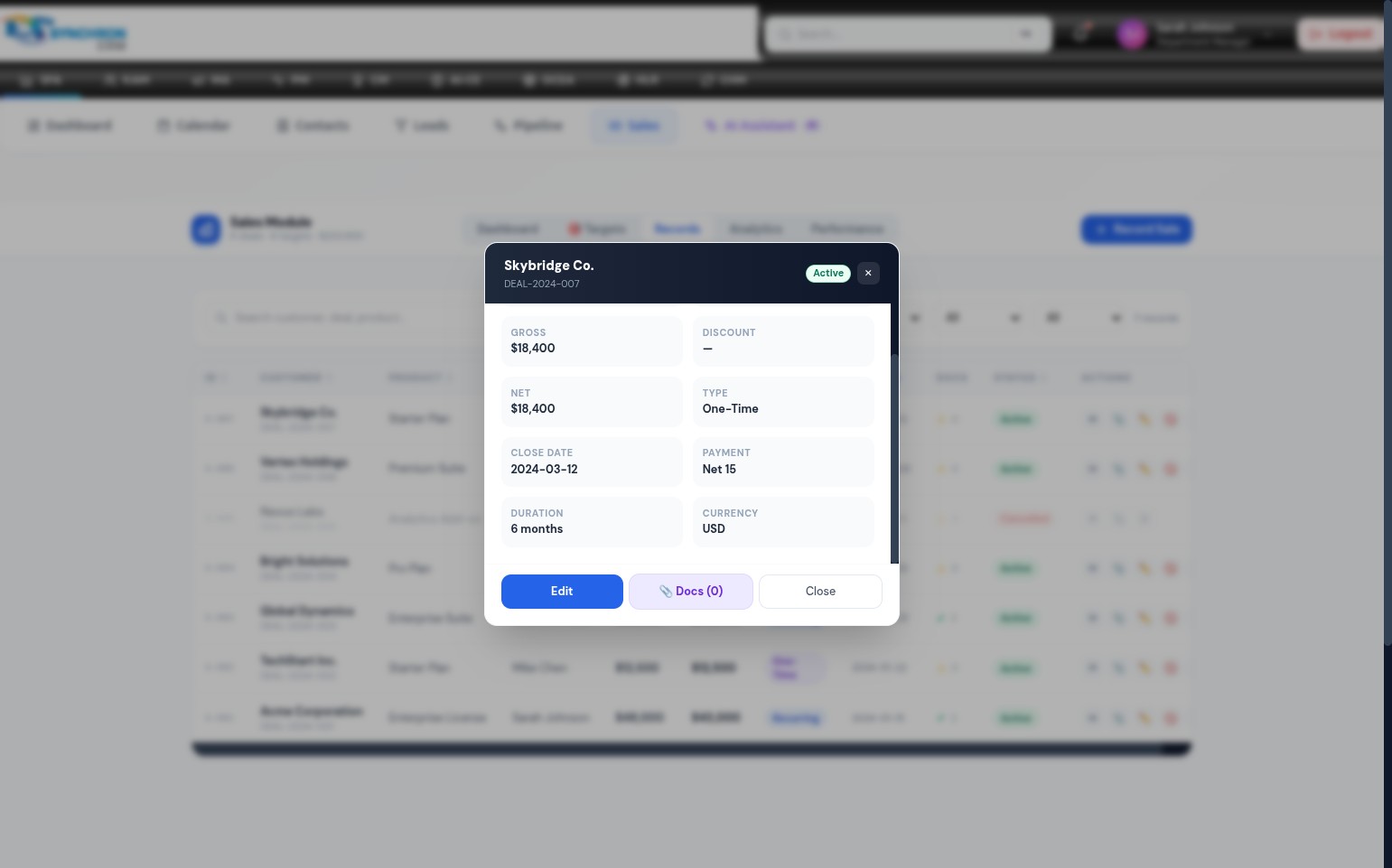
The full Deal Details panel includes:
- Transaction summary — customer, deal ID, product, sales rep, close date
- Financial details — gross value, discount, net value, payment terms, currency
- Revenue type and status badge
- Documents — any files attached when the record was created
- Notes — any context added during deal entry
Click the X icon to close the panel and return to the Records table.
Search for a record
Click the "Search customer, deal, product..." field above the table and type any keyword. The table filters in real-time as you type, matching against customer names, deal IDs, and product names.
Edit or delete a record
Each row has three action icons on the right side:
- Eye icon — opens a read-only view of the full sale record details
- Pencil icon — opens the edit form to update the record's details
- Trash icon — permanently deletes the sale record
Deleted sale records cannot be recovered. Confirm the correct record is selected before clicking the trash icon.
Record a new sale
Click the + Record Sale button in the top-right corner to open the Record New Sale form. See Record a Sale for full instructions.