Manage Leads
Add new sales leads, update existing lead records, and delete leads that are no longer relevant. Each lead stores contact information, company details, lead source, status, estimated deal value, and notes.
Create a new lead
Step 1 — Open the Create New Lead form
In the Leads module, click the + Add New Lead button in the top-right corner of the dashboard.
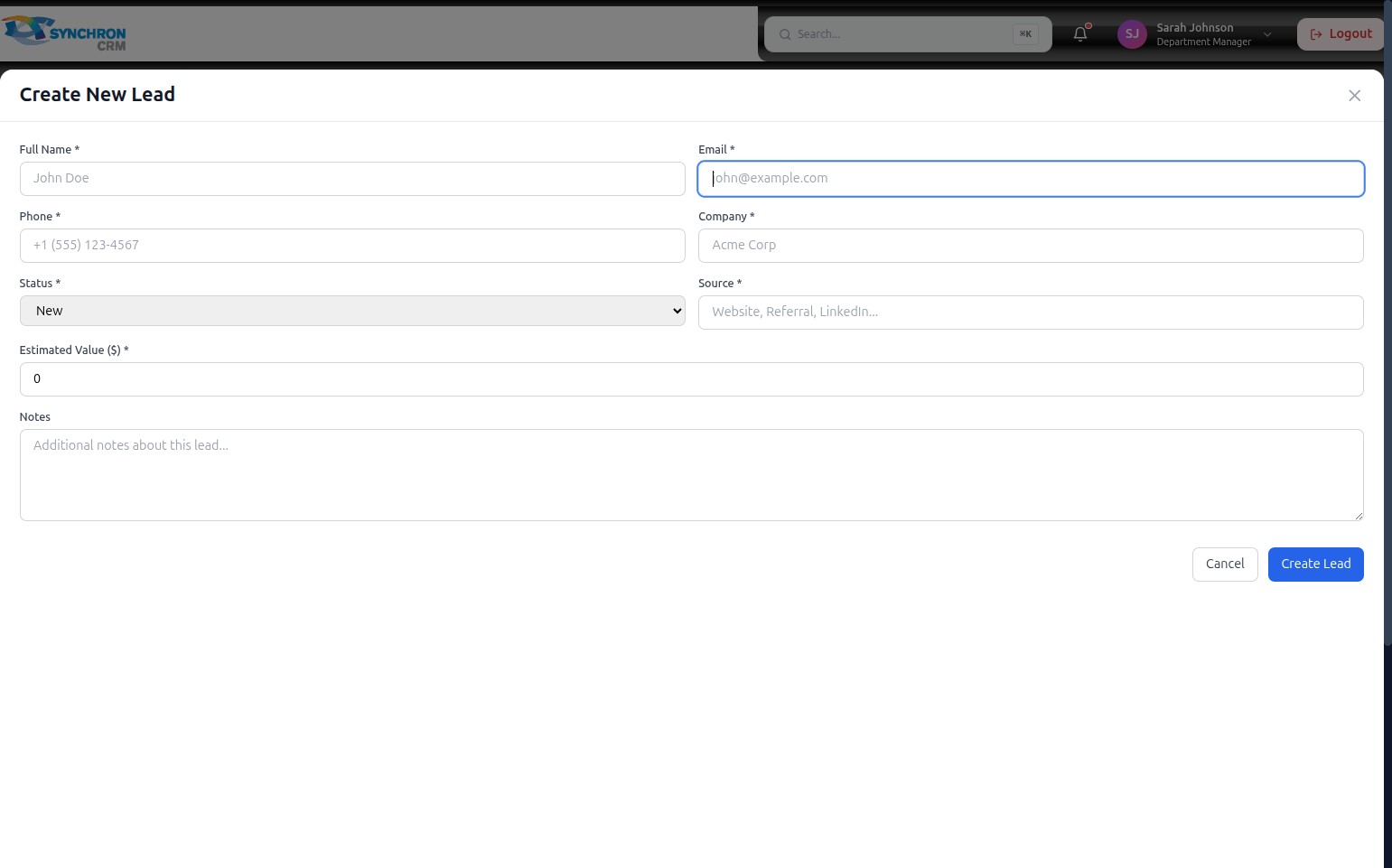
The "Create New Lead" modal opens. All fields marked with an asterisk (*) are required.
Step 2 — Enter the full name
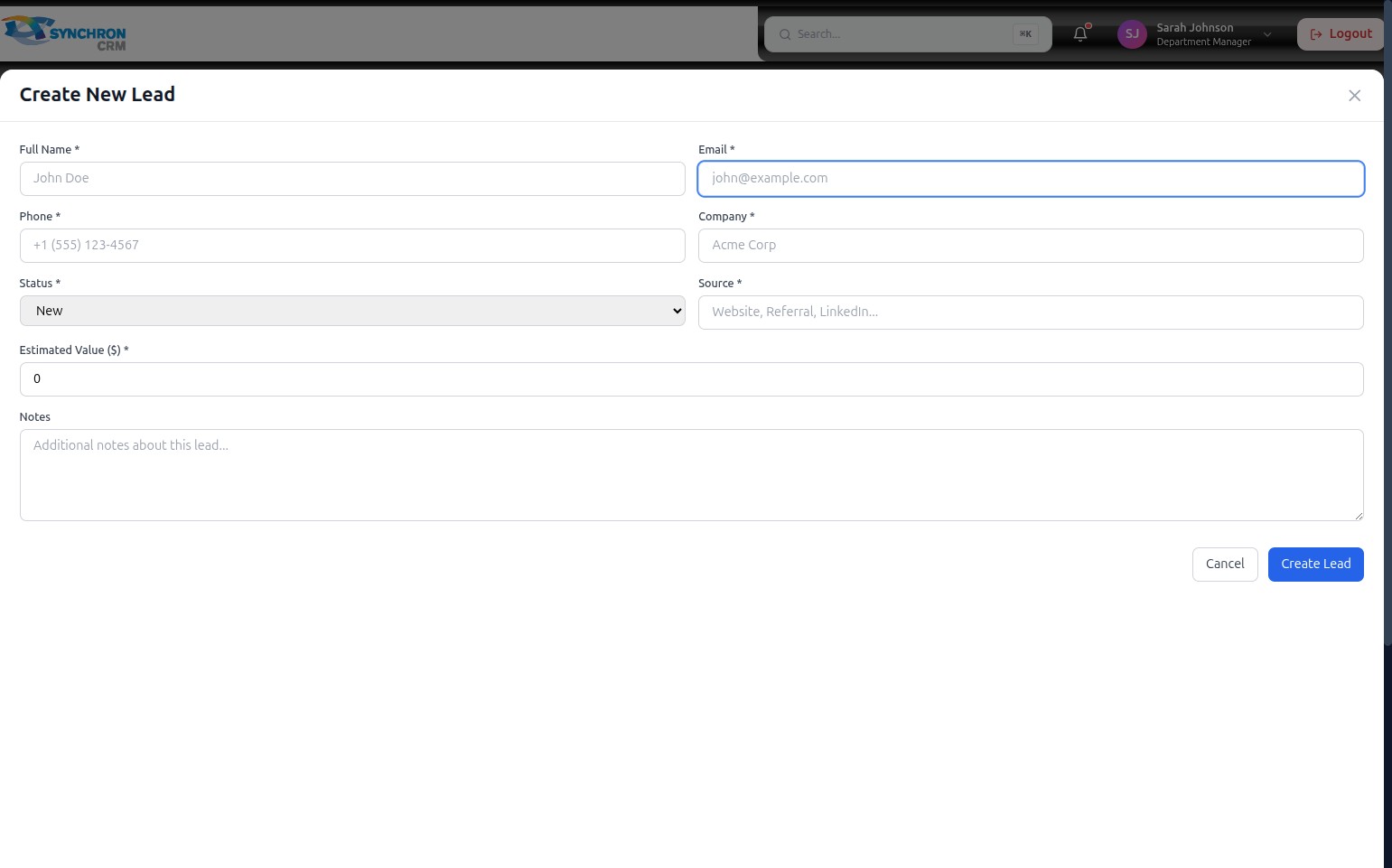
In the Full Name* field, type the lead's complete name (e.g., "Jane Smith"). This name appears in the Leads table and in all search results.
Step 3 — Enter contact information
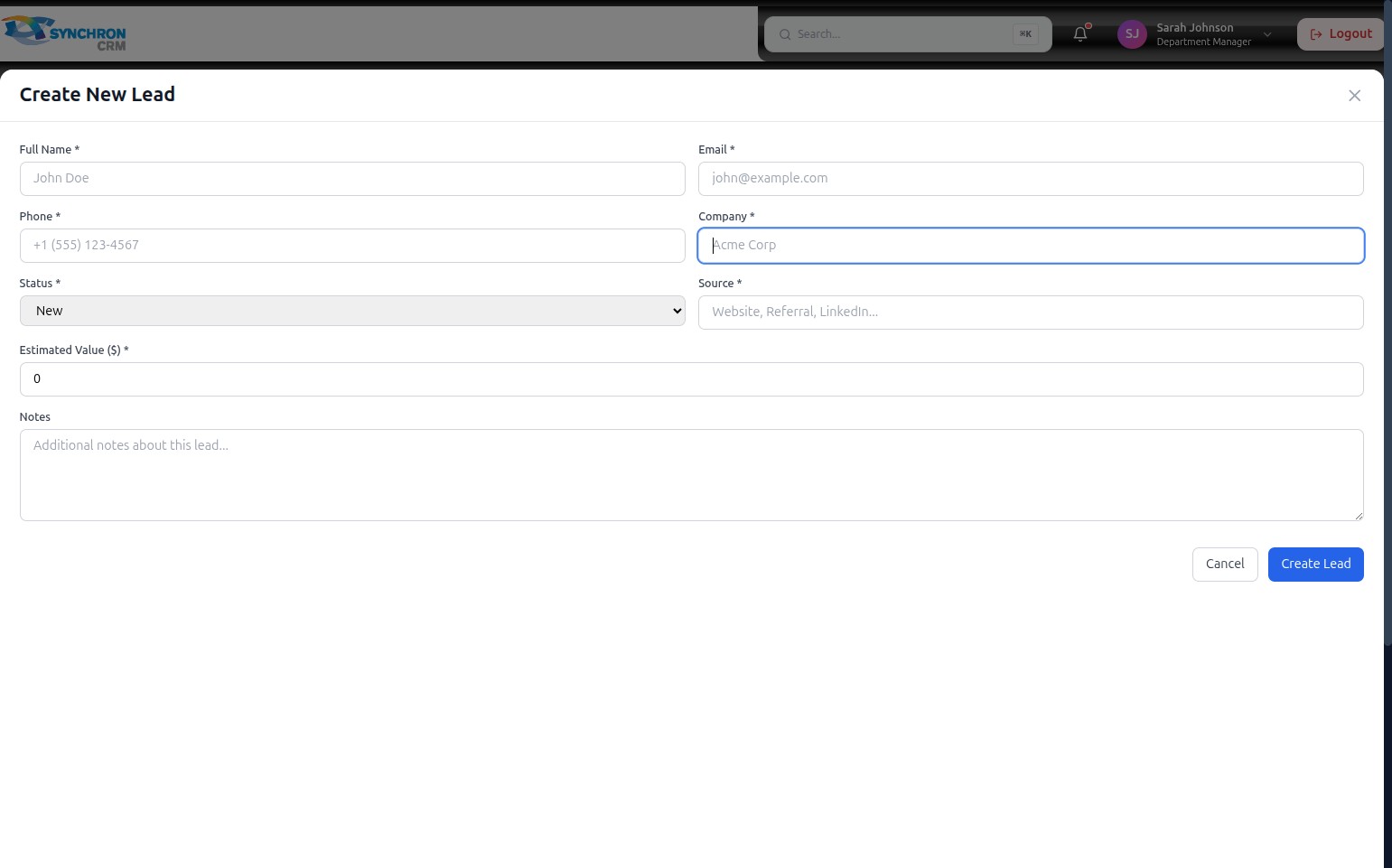
Fill in the remaining required contact fields:
- Email* — enter a valid email address (e.g., "jane.smith@company.com").
- Phone* — enter the contact number including country code (e.g., "+1 (555) 987-6543").
- Company* — type the name of the organisation the lead represents (e.g., "Acme Corp").
Step 4 — Set lead status and source
-
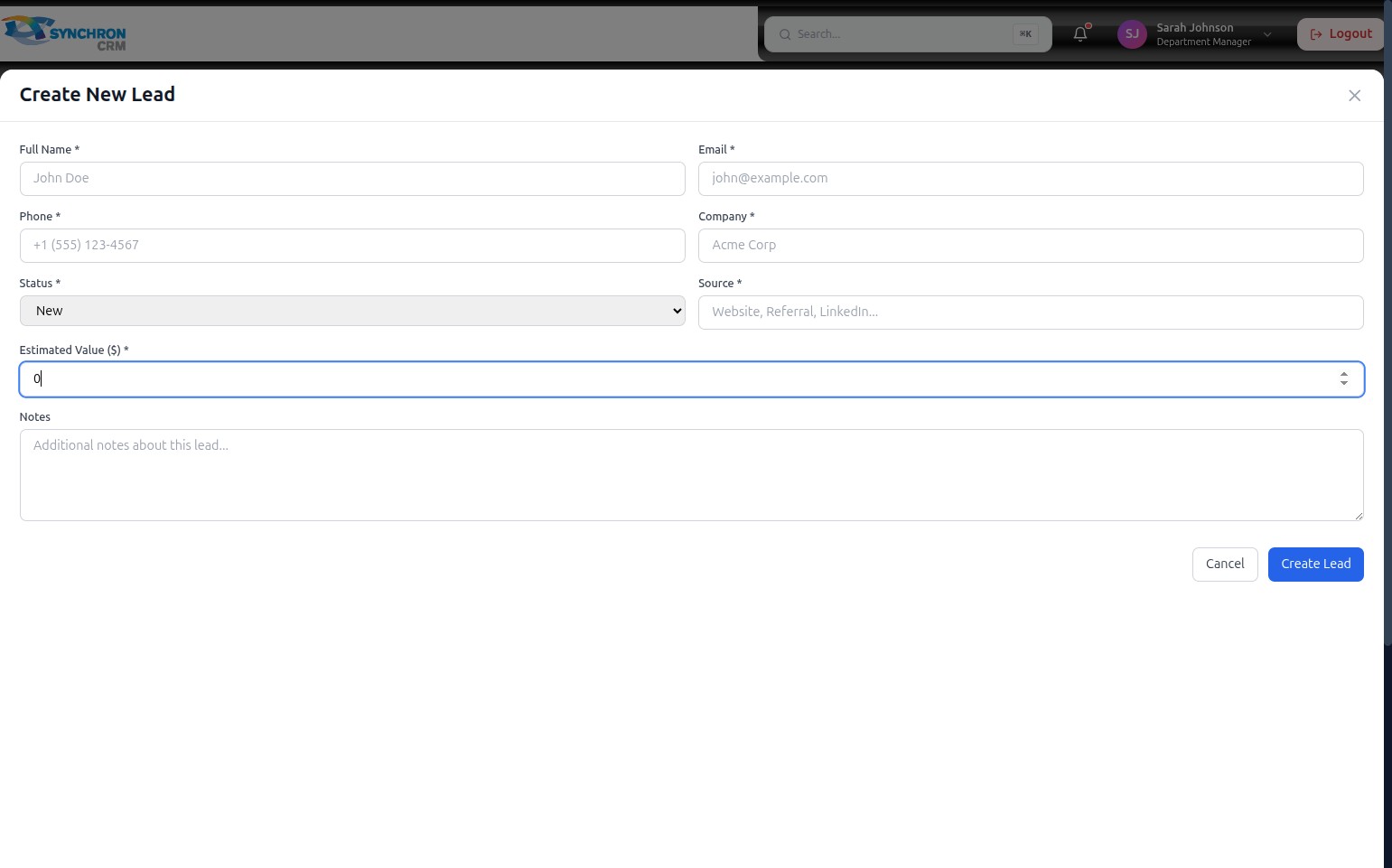
Status* — click the Status dropdown and select the lead's current lifecycle stage. The default is New. Other available options include:
- Contacted — initial outreach has been made
- Qualified — assessed as a good fit
- Disqualified — determined not to be a viable opportunity
-
Source* — enter how the lead was acquired. Common source values:
- Website
- Referral
- Trade Show
- Cold Call
Step 5 — Enter the estimated value
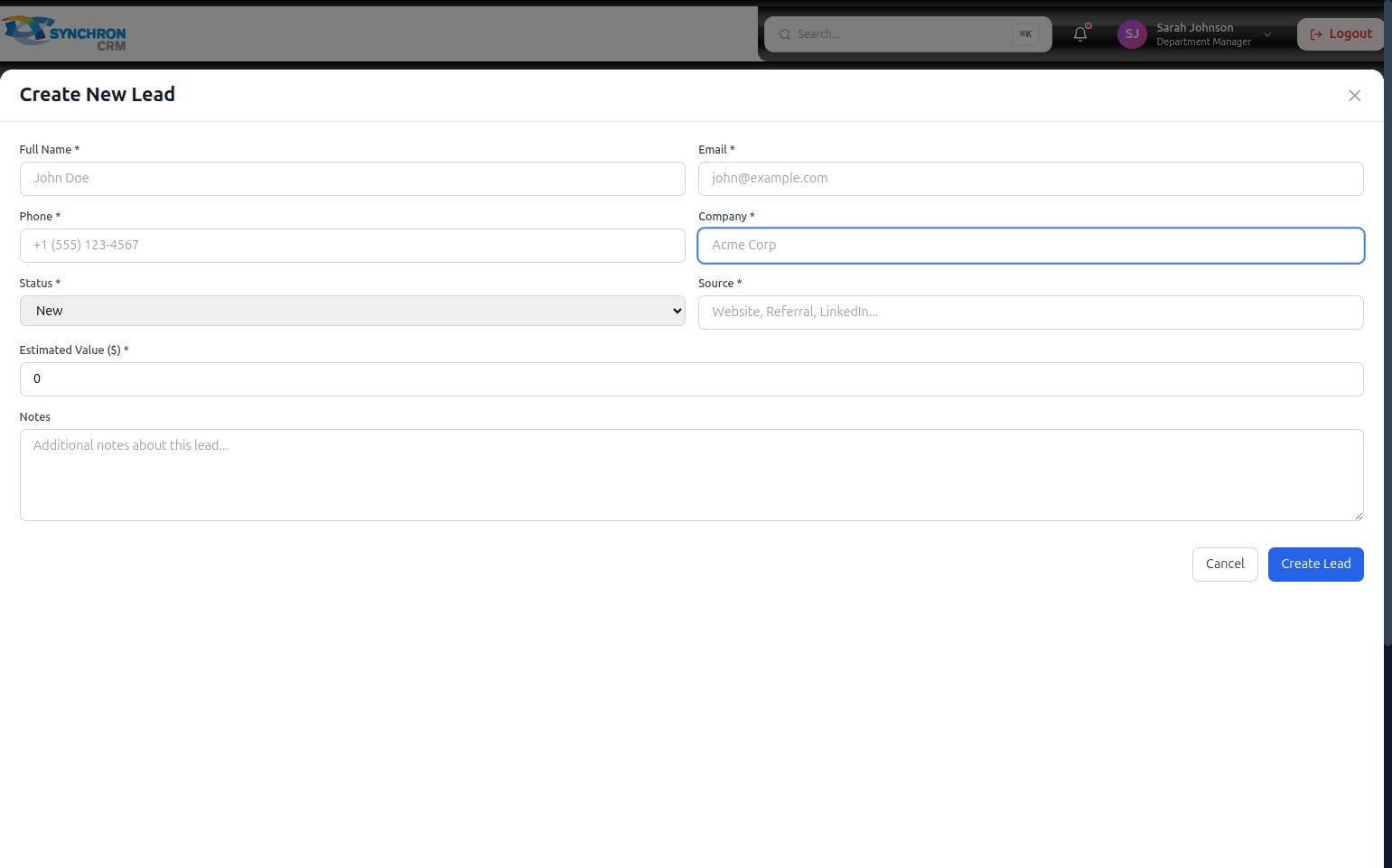
In the Estimated Value ($)* field, enter the potential deal value as a number (e.g., 15000 for a $15,000 opportunity). Enter 0 if the value is not yet known.
Step 6 — Add notes (optional)
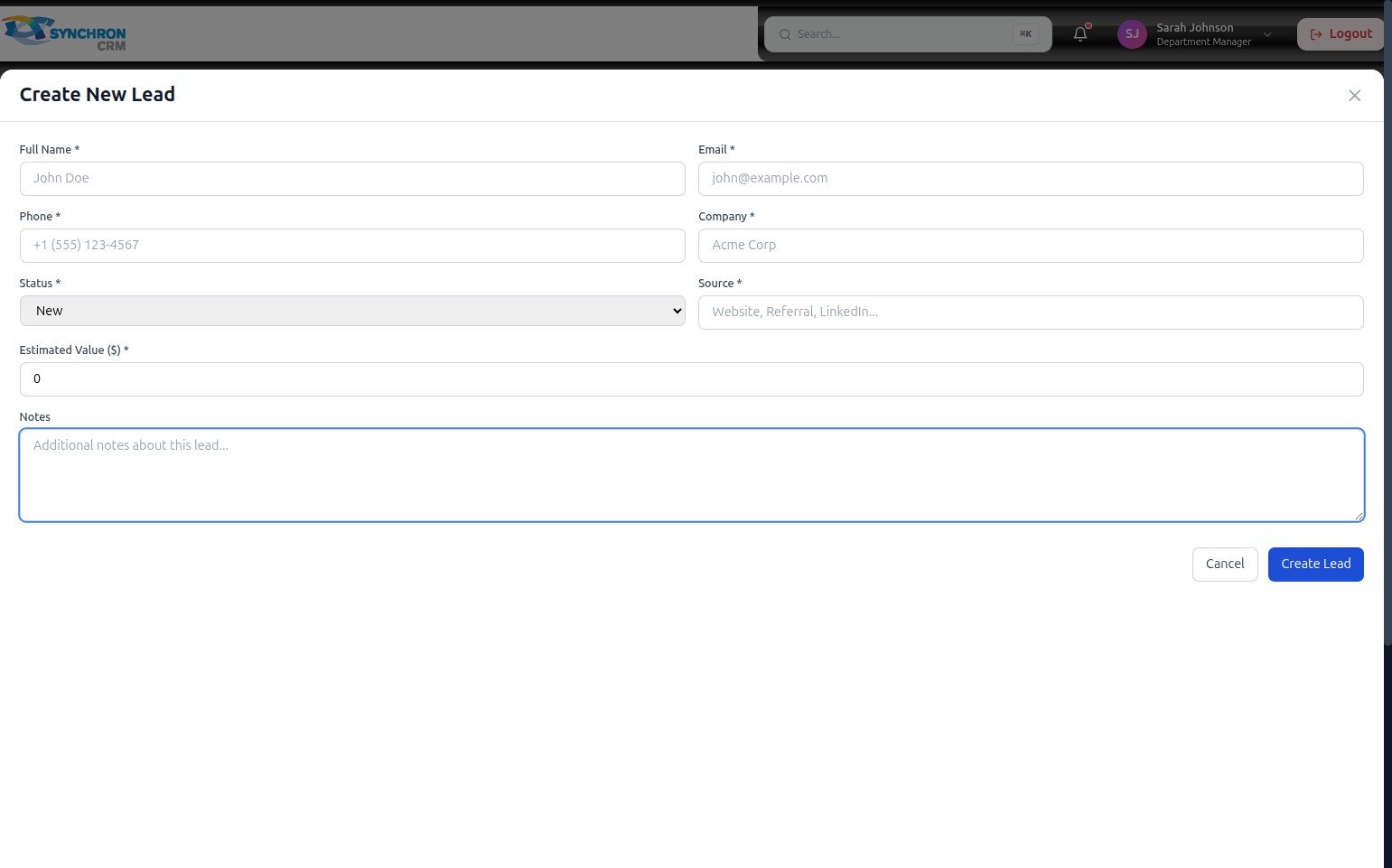
In the Notes text area, add any relevant details: specific requirements, conversation history, competitor context, or follow-up actions needed.
Step 7 — Review the completed form
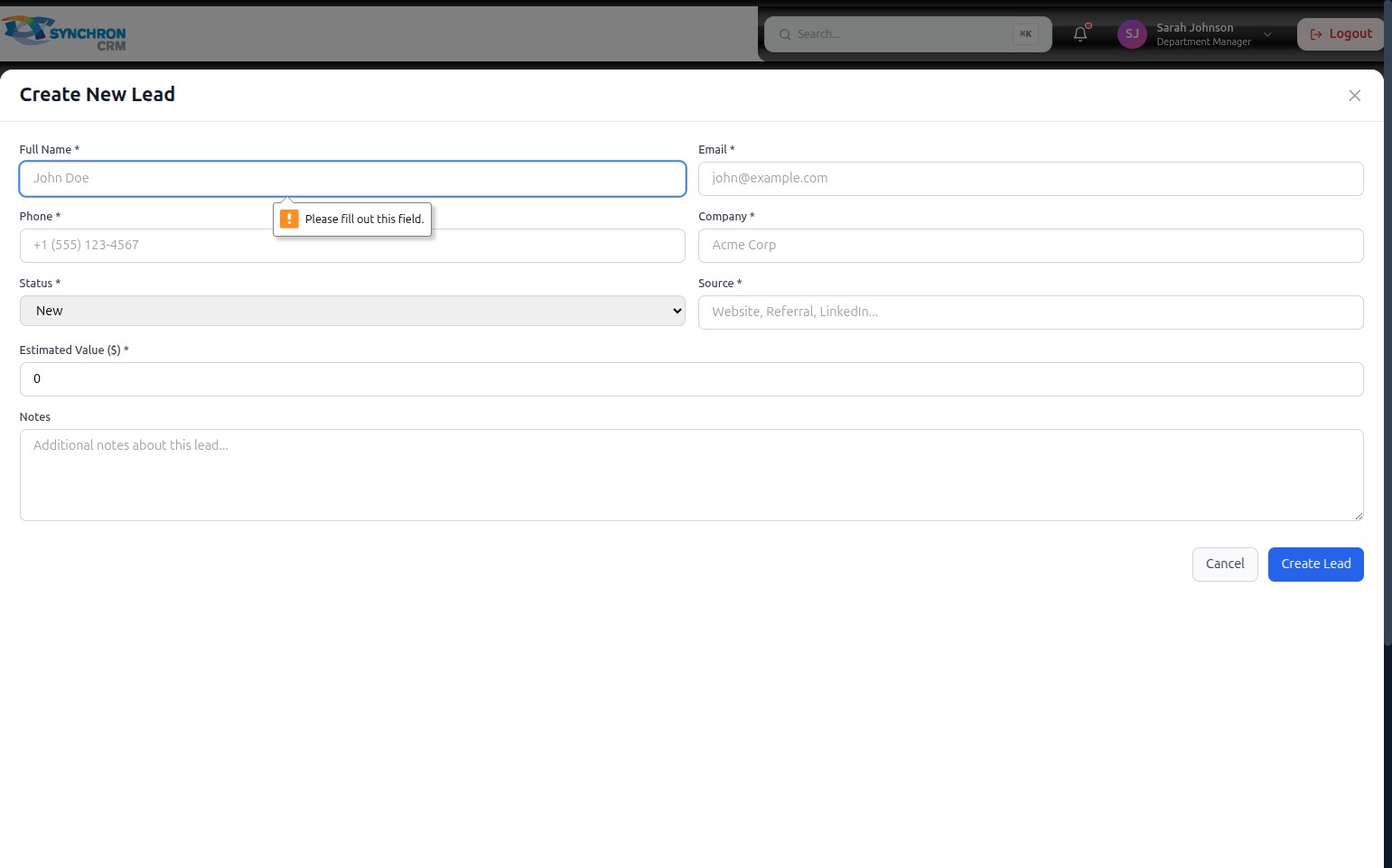
Review all required fields (marked with *) to confirm they are complete:
- Full Name
- Phone
- Company
- Status
- Source
- Estimated Value
Step 8 — Save the lead
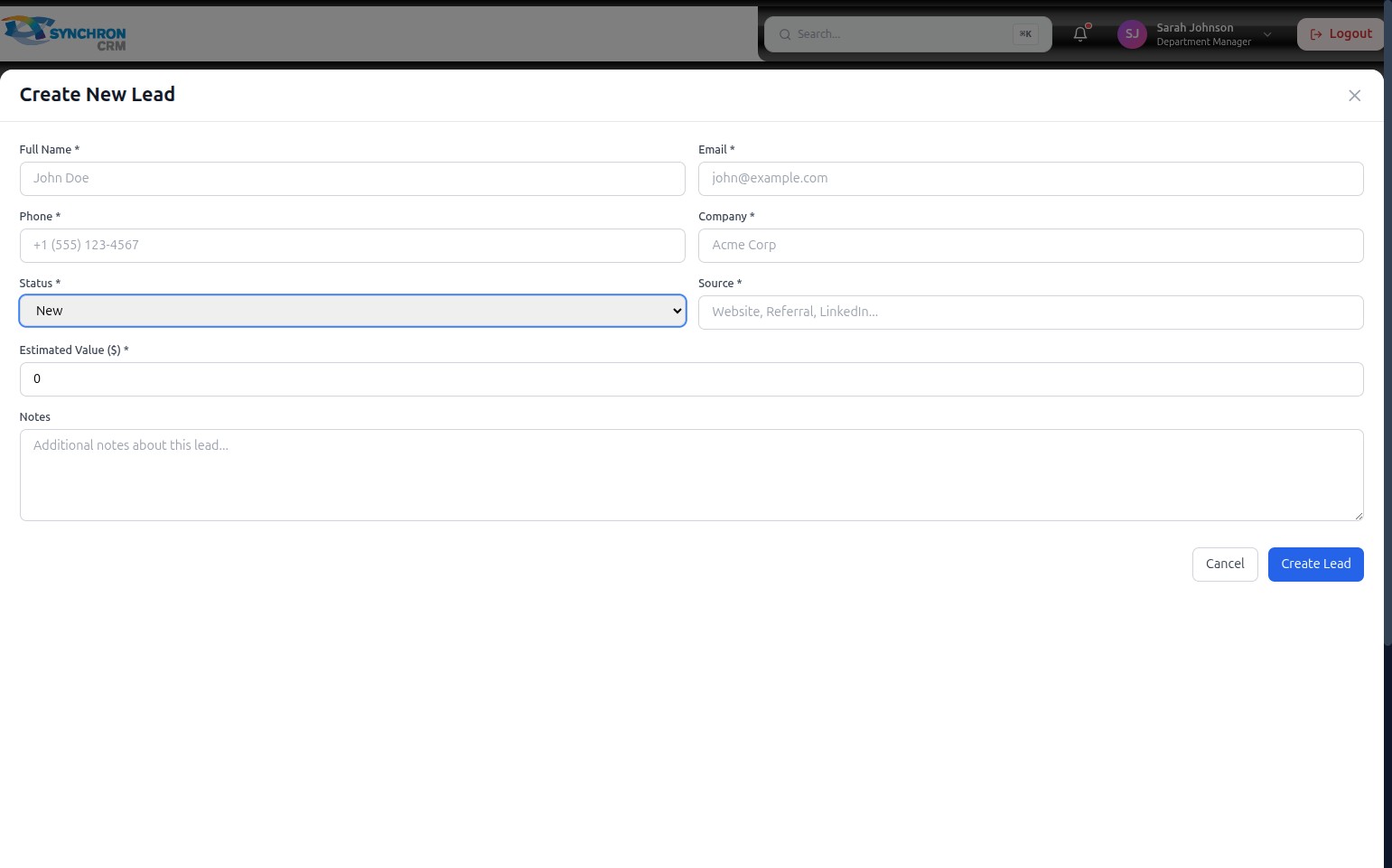
Click the blue Create Lead button to save the record to the system.
To discard without saving, click Cancel or the X icon in the top-right corner.
All required fields — Full Name, Email, Phone, Company, Status, Source, and Estimated Value — must be completed before the lead can be created.
Edit an existing lead
- In the Leads table, click the pencil icon in the Actions column for the lead you want to update.
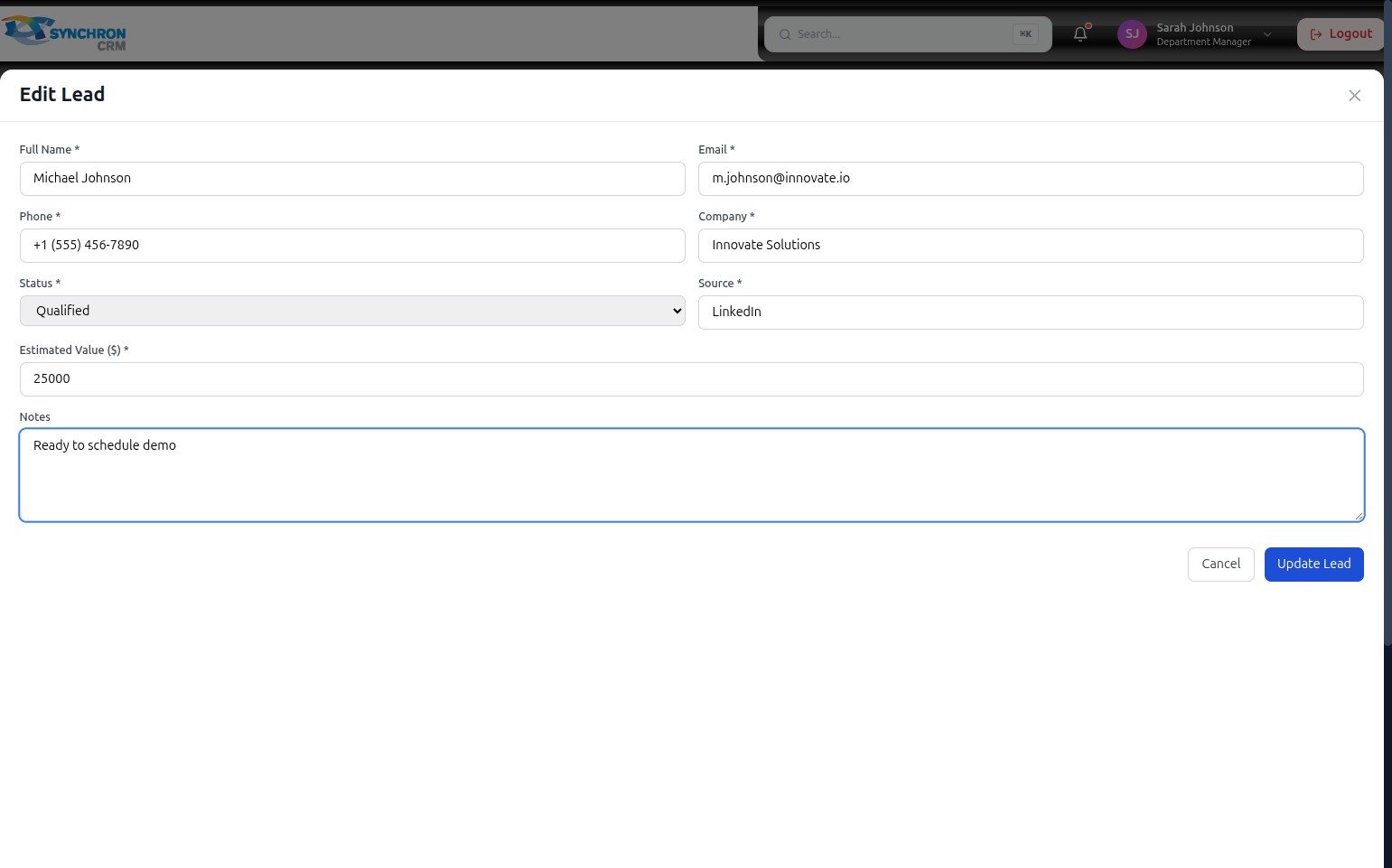
- The "Edit Lead" modal opens with all current information pre-filled. Click into any field and update the information — contact details, status, source, estimated value, or notes.
- Review required fields (marked with *) to confirm they are filled in.
- Click the Update Lead button to save your changes.
To discard changes without saving, click Cancel or the X icon.
Delete a lead
In the Leads table, click the trash icon in the Actions column for the lead you want to remove. Confirm the deletion when prompted.
Deleted leads are permanently removed and cannot be recovered. Verify the correct record is selected before confirming the deletion.