Contact Management
The Contacts Module is used to manage individuals associated with companies, leads, and customers.
Contacts represent decision-makers, influencers, and stakeholders within client organizations.
This module allows users to:
- Create new contacts
- Edit existing contacts
- View contact details
- Track related deals
- Monitor contact activities
- Assign ownership
1. Contacts List View
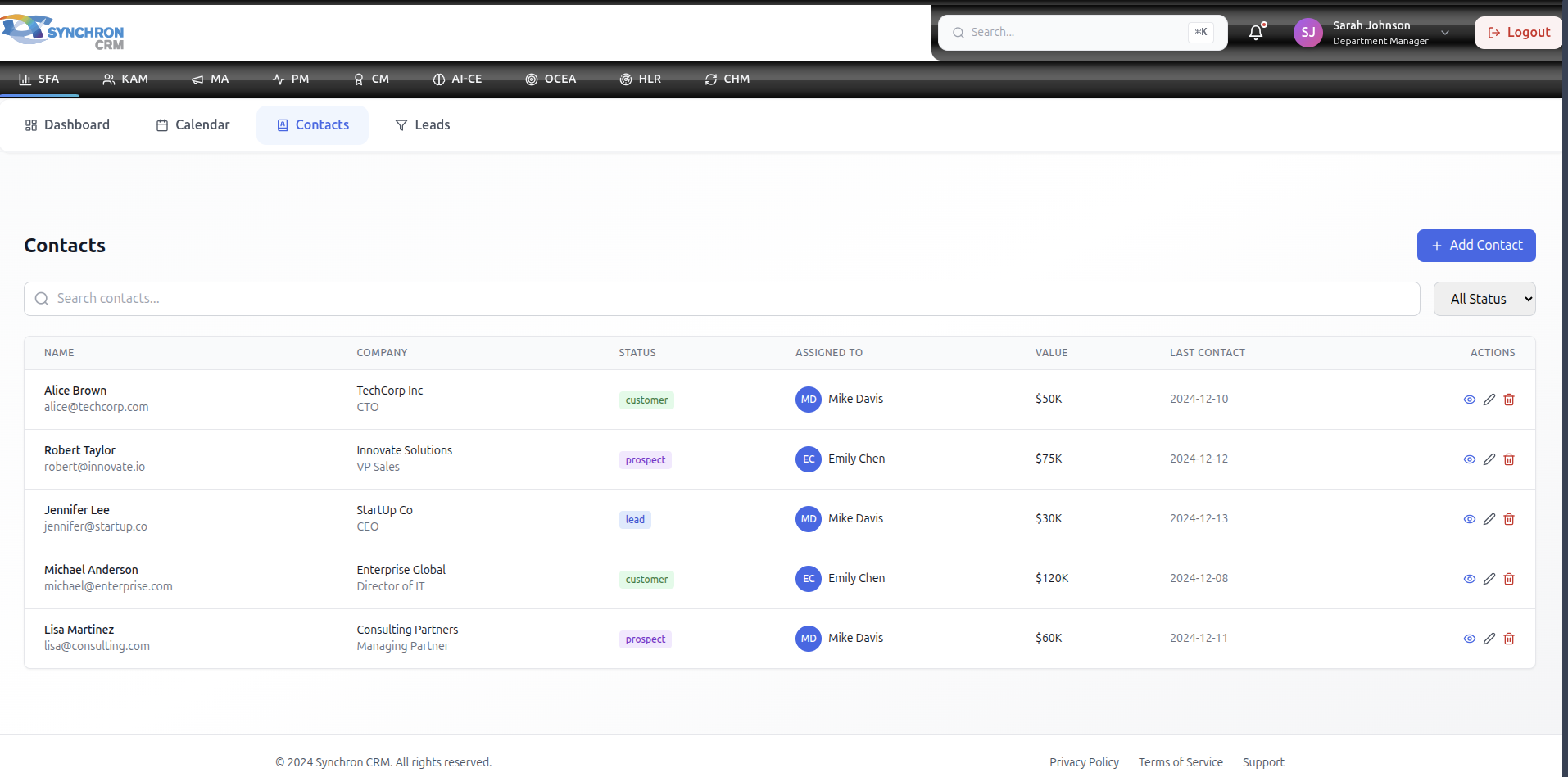
The Contacts List provides a centralized table view of all contacts.
1.1 Available Columns
The table includes:
- Name
- Company
- Status
- Assigned To
- Value
- Last Contact Date
- Actions
1.2 Status Types
Contacts may have different statuses:
- Lead
- Prospect
- Customer
Status indicates relationship maturity.
1.3 Actions Available
For each contact, users can:
- View Contact
- Edit Contact
- Delete Contact
Icons are available in the "Actions" column.
1.4 Search & Filter
Users can:
- Search contacts by name or email
- Filter by status
- Quickly locate assigned contacts
Best Practice: Use filters daily to prioritize follow-ups.
2. Creating a New Contact
To create a contact:
- Navigate to Contacts
- Click + Add Contact
- Complete the required fields
- Click Create Contact
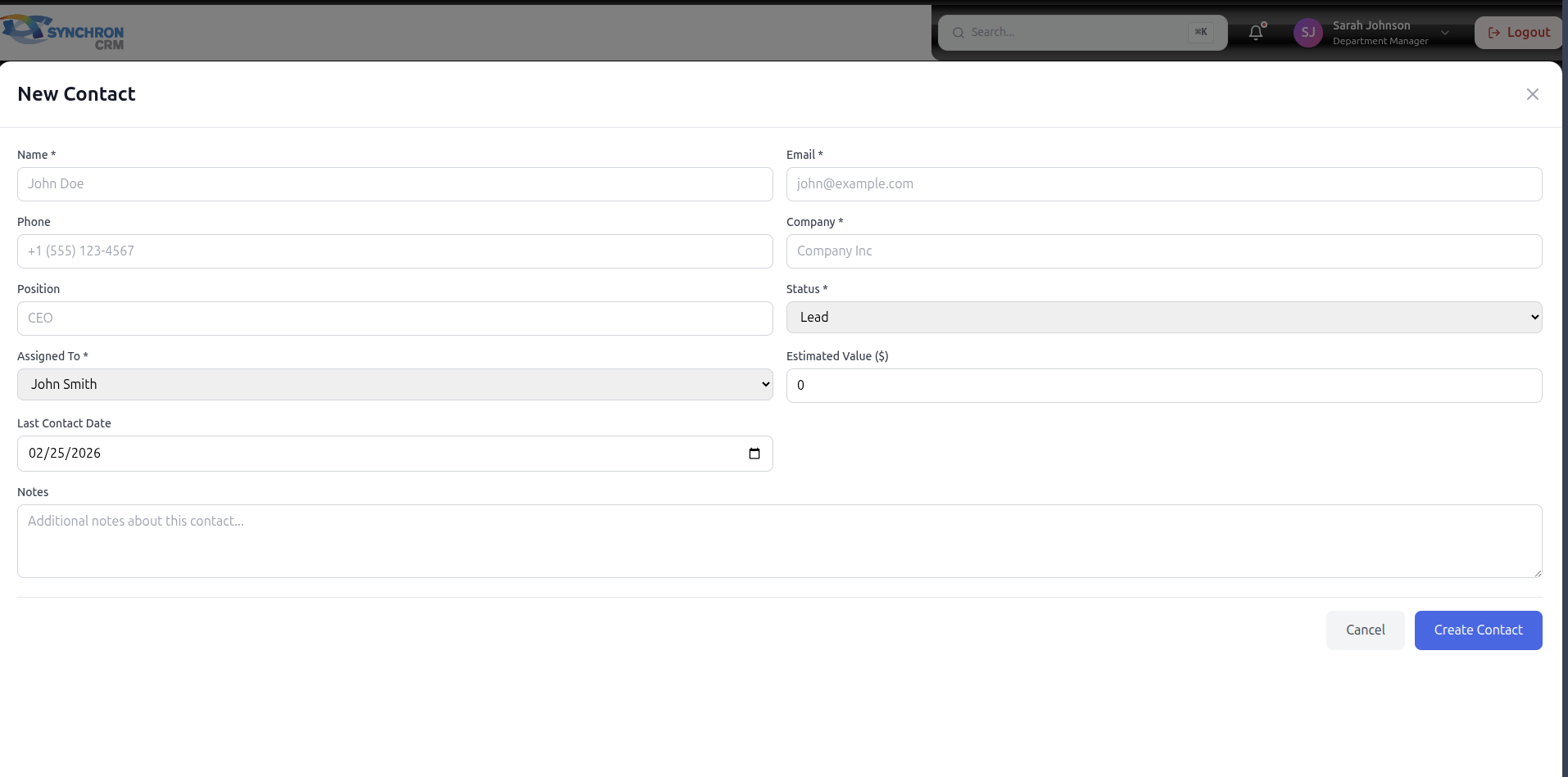
2.1 Required Fields
- Name *
- Email *
- Company *
- Status *
- Assigned To *
2.2 Optional Fields
- Phone
- Position
- Estimated Value
- Last Contact Date
- Notes
2.3 Field Descriptions
Name
Full name of the contact person.
Email
Primary communication email.
Phone
Direct phone number.
Position
Job title (e.g., CTO, CEO, Director).
Company
Organization the contact represents.
Status
Lead / Prospect / Customer.
Assigned To
Responsible sales representative.
Estimated Value
Projected revenue associated with this contact.
Last Contact Date
Most recent interaction date.
Notes
Internal remarks and observations.
3. Viewing Contact Details
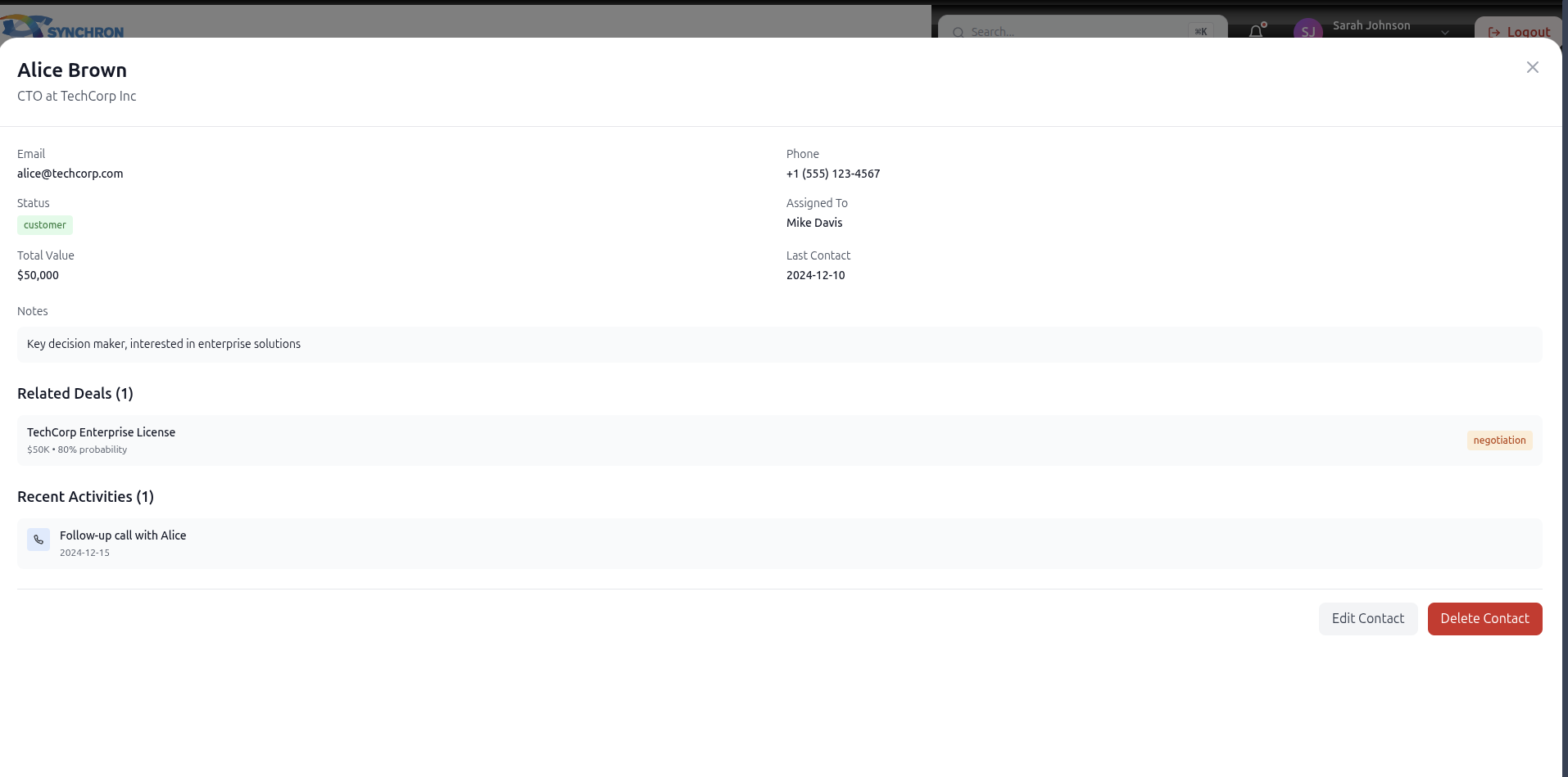
When opening a contact, the system displays:
3.1 Contact Information
- Full Name
- Position
- Phone
- Company
- Status
- Assigned To
- Total Value
- Last Contact Date
- Notes
3.2 Related Deals
Displays all opportunities linked to the contact.
Example:
- Deal Name
- Deal Value
- Probability
- Current Stage
This helps track revenue potential per contact.
3.3 Recent Activities
Shows interaction history such as:
- Follow-up calls
- Meetings
- Emails
- Updates
Activity logging improves visibility and accountability.
4. Editing a Contact
To edit:
- Open contact
- Click Edit Contact
- Update fields
- Click Update Contact
Ensure all information remains current.
5. Deleting a Contact
To delete:
- Open contact
- Click Delete Contact
- Confirm deletion
Important: Deleting a contact may impact related deals and reporting.
Only delete if record is invalid or duplicated.
6. Contact Lifecycle
A typical lifecycle:
Lead → Prospect → Customer
As relationship matures:
- Value increases
- Deal probability improves
- More activities are recorded
7. Best Practices for Contact Management
✔ Always assign an owner
✔ Update last contact date after interaction
✔ Record meaningful notes
✔ Link related deals
✔ Avoid duplicate records
✔ Maintain accurate company association
8. Manager Monitoring
Managers should monitor:
- Contacts per sales rep
- Activity frequency
- High-value contacts
- Conversion from Prospect to Customer
Contacts are key relationship assets.
9. Data Governance
To maintain clean CRM data:
- Standardize job titles
- Validate email format
- Enforce required fields
- Avoid deleting historical customers
- Use consistent status definitions
Clean data improves analytics accuracy.
10. Summary
The Contacts Module is essential for managing customer relationships.
It enables:
- Relationship tracking
- Revenue linkage
- Activity monitoring
- Ownership accountability
Strong contact management directly improves sales performance.